What is a reference file?
A reference file is a supplemental file in a workflow that can provide additional information to users to be able to complete their tasks, offer general information about the project, or give any other relevant information that needs to be associated with the project. Reference files can be uploaded through an “Upload Reference Files” task or directly from the “References” tab. See Tasks for more information.
Exploring the references tab
All project participants will have access to their project’s references tab and can view the reference files they have access to, based on their permissions. If task owners only have access to view a sub-process because their task is within a sub-process, then they can only see files that were uploaded to that sub-process or have visibility in that sub-process. Project owners can view all reference files in the project and sub-process owners can only view all files uploaded to own sub-process, including nested sub-processes. Note: Task owners at a project level have permissions to view all project reference files.
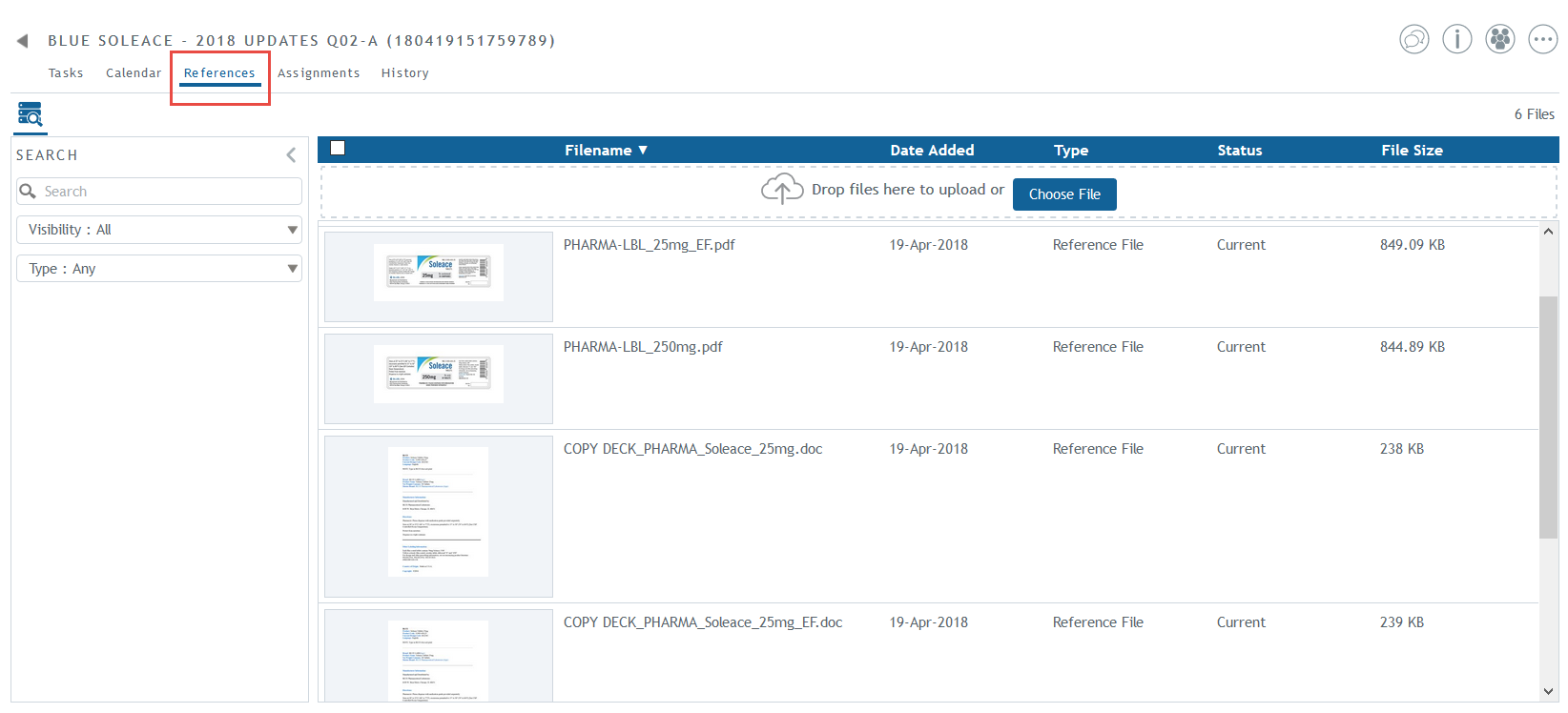
Depending on their permissions, project participants can choose from the options in the visibility drop down menu to view files at different levels of the project. In this example, the project owner has visibility at all levels, including files uploaded at the project and sub-process levels. Clicking on list items will show the files that belong at that level.
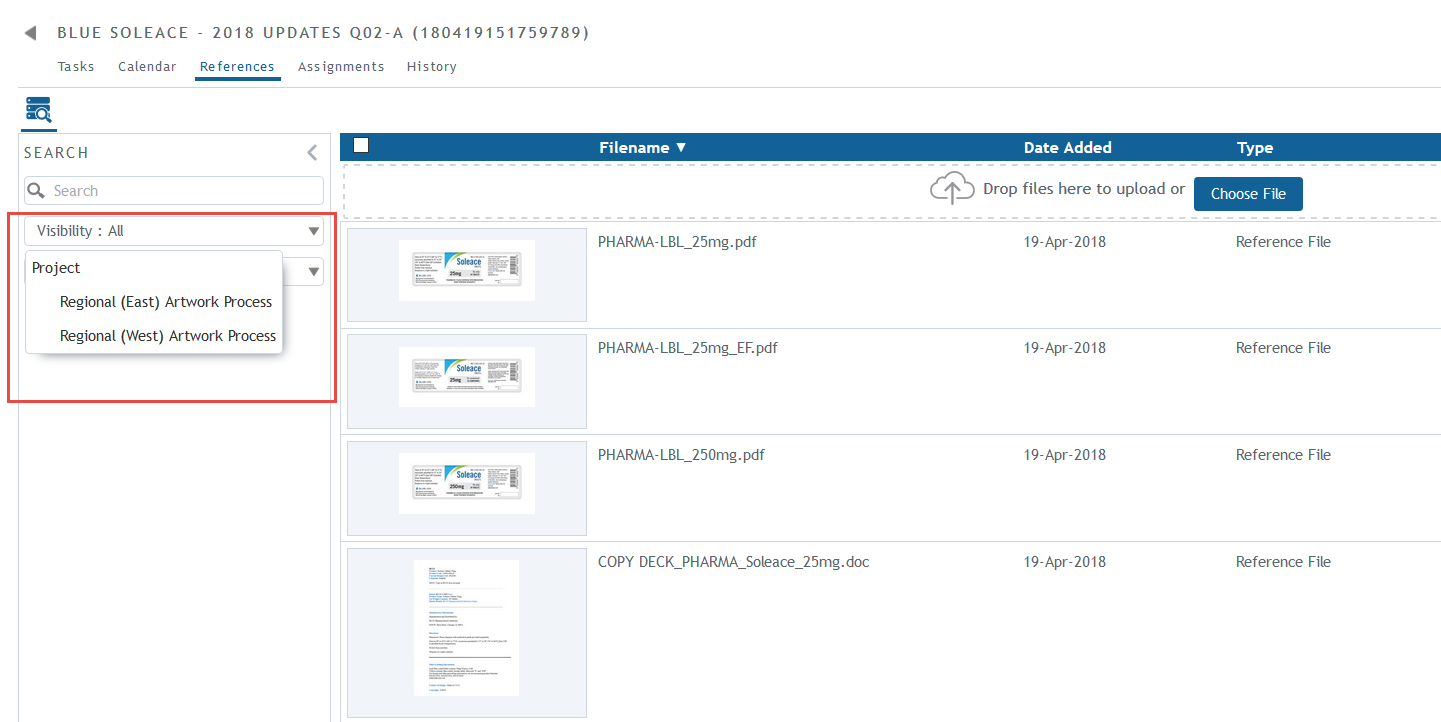
Project participants can view details of the reference files by clicking on the row of the file. In the right panel, they can see the actions that can be taken on the file, the file’s properties, and the project’s visibility of the file.
Modifying a reference file’s visibility from the references tab
The project owner can modify the visibility of reference files that are uploaded to the project and sub-process owners can change the visibility of sub-process files. Task owners are able to upload reference files, but cannot edit the reference file visibility of those uploaded files. If a reference file is uploaded in a task, it does not appear on the references tab until the task is complete. So the visibility of that file cannot be changed until the task has been completed.
Base artwork files from a Select Base Artwork task or an Auto Sub-Process Generated project are not visible on the references tab, but are still visible in the task details panel. The visibility of these files cannot be edited.
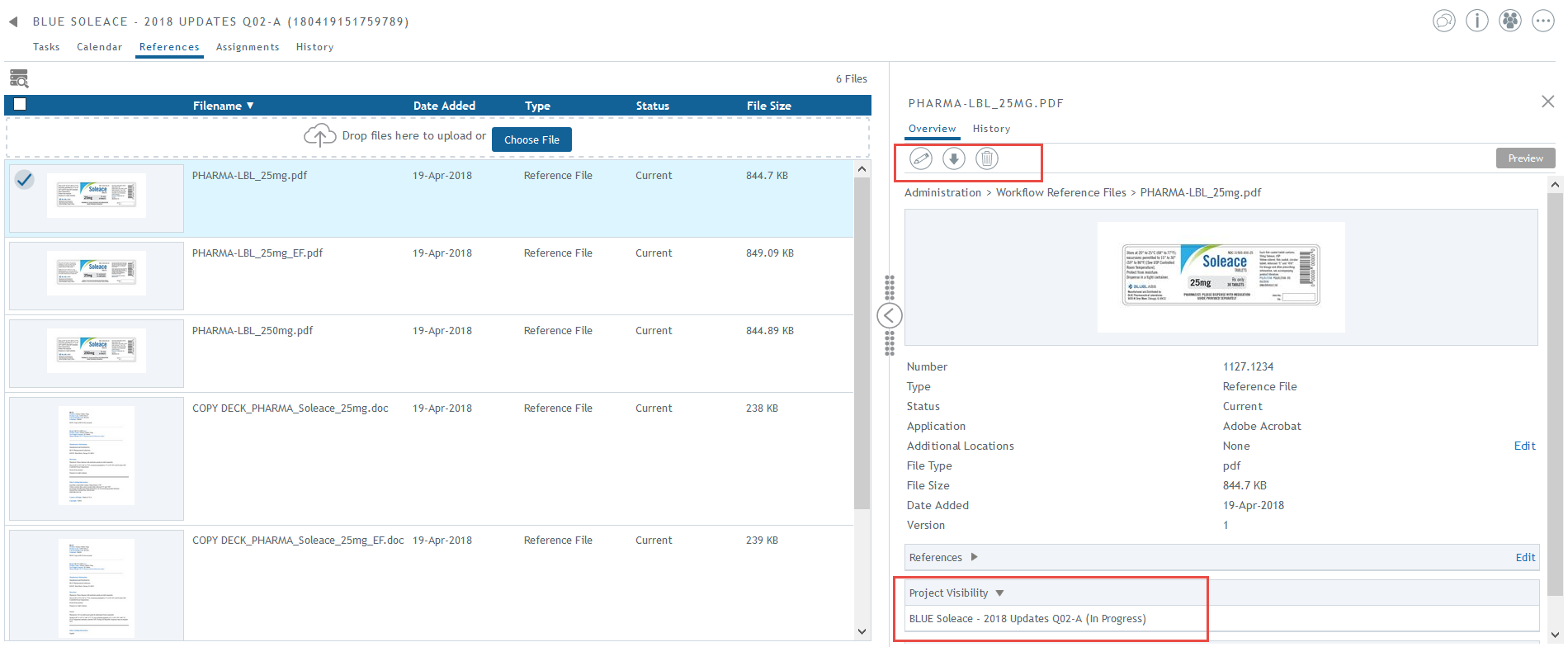
To change the visibility of a file on the references tab, select the file and then click on the “Edit Visibility” icon in the file’s details panel.
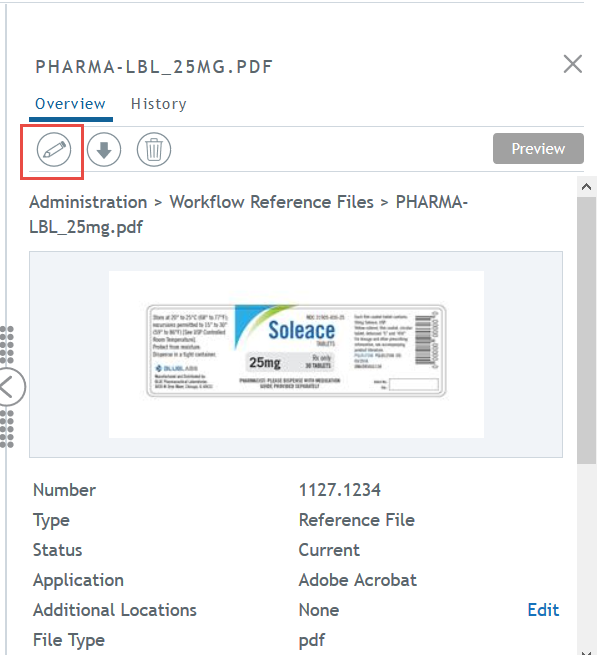
The “Edit Visibility” window will appear showing the options available. The project owner can choose to make this file visible for all tasks in the project, or choose to have only visible in one or more sub-processes. Click OK to save the changes.
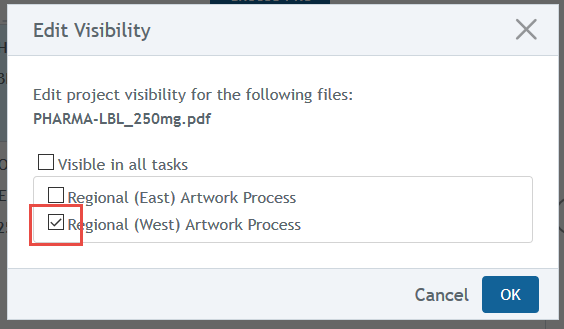
The project owner may also choose to make the reference file invisible across the project by deselecting all options in the “Edit Visibility” window. This may be useful in situations where a project owner wants to update a reference file without having a specific task for doing so.
To remove the visibility of the file from any sub-process and its tasks within the project, deselect any checked locations and click OK. The file will no longer be visible at that level and will be hidden, but will still be visible to the project owner.
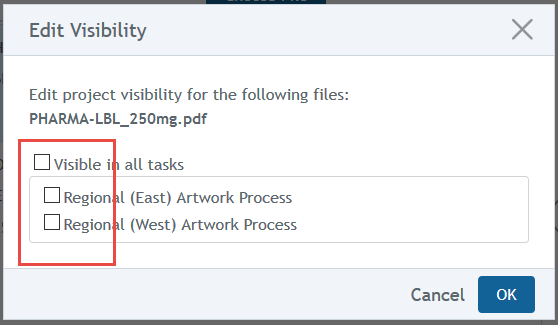
Note: A file uploaded in an Upload Reference Files or Complete Form task at the project level and on the project references tab (not visible in any sub-processes) cannot be ‘hidden’ in the project. There is no way to edit the visibility of the file to not be visible in project level task details for allowed users.
Schedule navigation group rights will allow a sub-process owner the permission to edit visibility of reference files at the project level in a project they already have some access to.
Adding visibility on file upload
Reference files can be uploaded at the project level or at a sub-process level.
Reference files uploaded at the project level, including project-level tasks and the references tab without selecting any sub-processes, are visible at the project-level tasks only.
Reference files uploaded in a sub-process are visible at the parent sub-process. File visibility is automatically granted upward to any task at the same level or above it within the project.
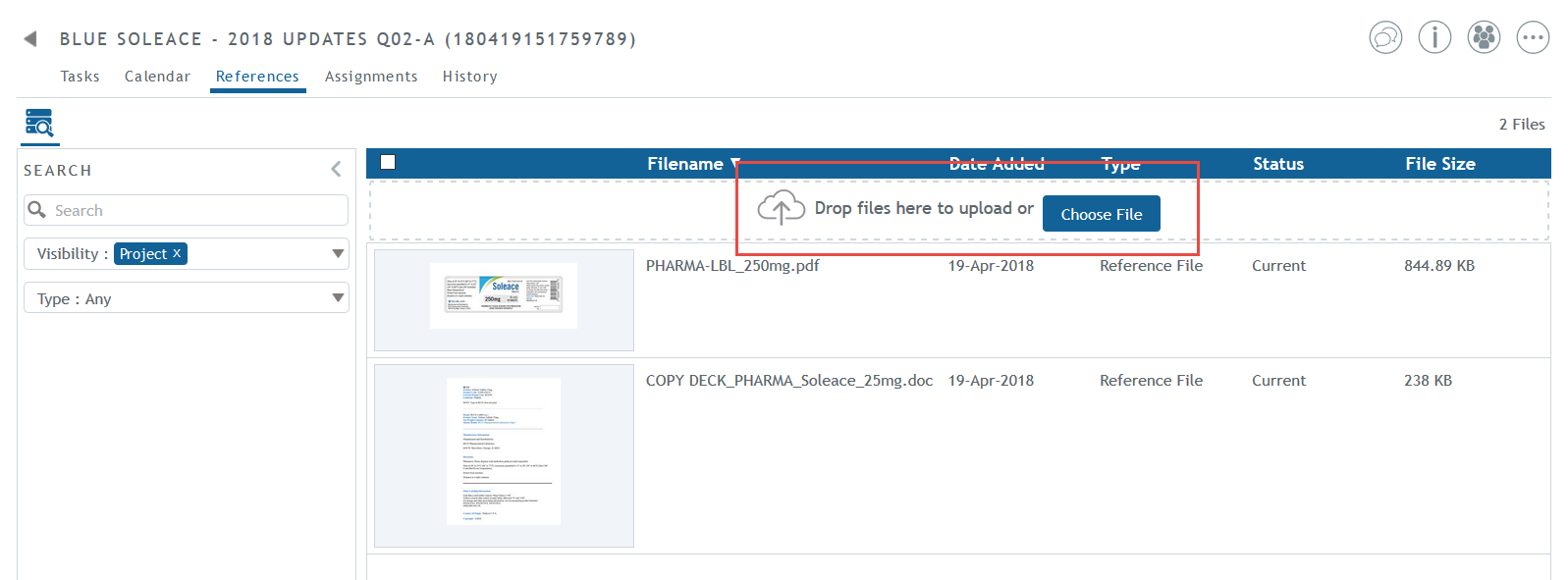
Drag and drop a file or click on the “Choose File” option to upload a file.
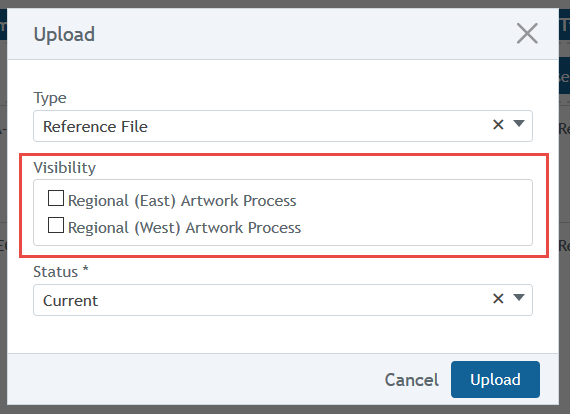
The Upload window will appear with an option to select the visibility for the file. Select one or more levels for the file’s visibility.
Note that the “Visible in all tasks” option is not available on the Upload dialog window.
Deleting a file from the references tab
If a reference file was uploaded directly onto the References tab and is no longer needed in the project, it can be directly deleted from the references tab. Files that were uploaded via an Upload for Reference Files task cannot be deleted using the Delete option, however, these files can be hidden if the project owner removes their visibility.
- Project owners can delete any reference file from the references tab, except files from completed Upload Reference Files and Complete Form tasks.
- Sub-process owners can delete any file they have access to and can view in the references tab. For example, if they have access to view the entire project, they can go to any sub-process view in the references tab, and delete a file. If their view is only restricted to their sub-process and project level, then those are the only files they can access and delete.
- Task owners do not have any rights to delete any file.
To delete a file from the References tab, select the file and on its details panel, select the “Delete File” option.
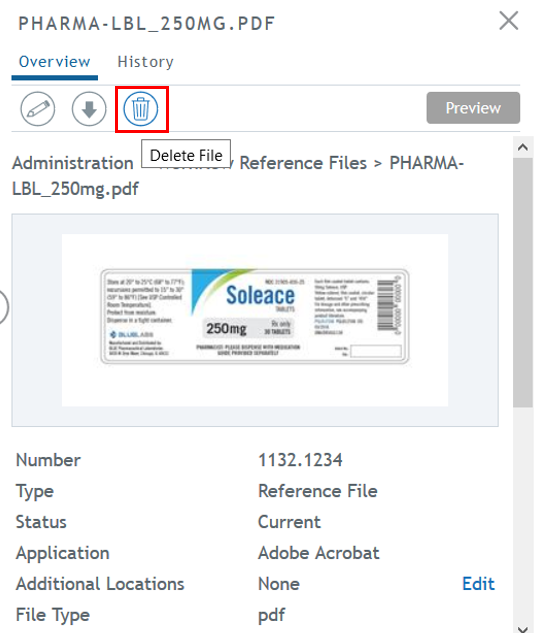
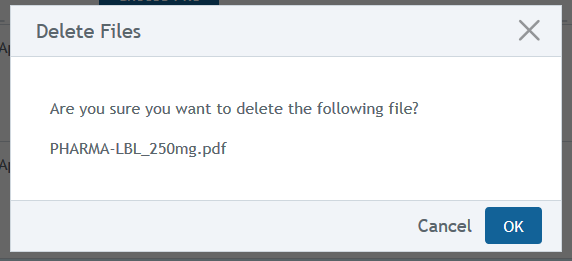
On click, the Delete Files confirmation window will display. Click OK to confirm the deletion.
Extending file visibility from the task
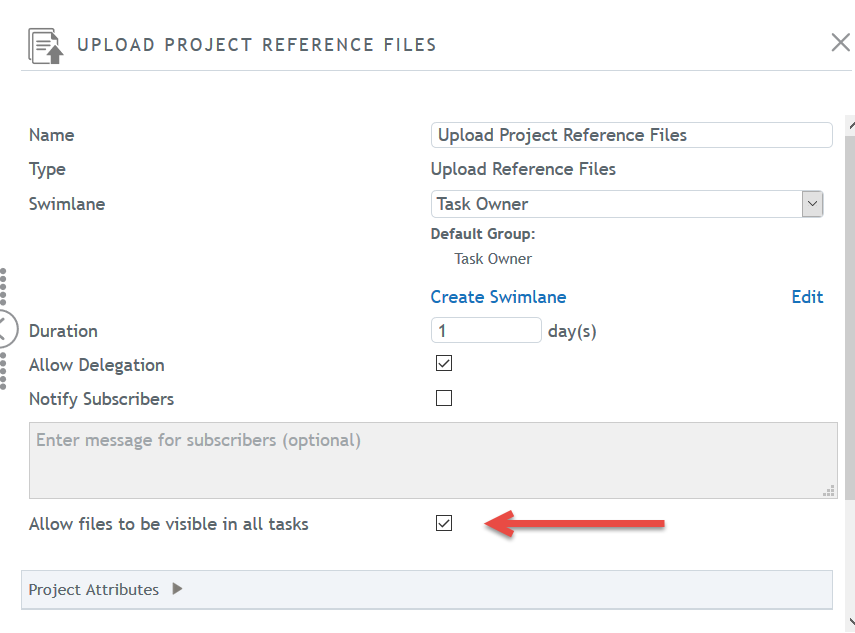
This functionality allows reference files to be visible in all tasks of a project. When working on a process template, an administrator can set up an “Upload Reference Files” task and have the checkbox “Allow files to be visible in all tasks” checked. When the Upload Reference Files task is in progress in a project, the files uploaded to this task will become visible for all tasks in the project and for all participants after task is completed.
If applied, the “Allow files to be visible in all tasks” template setting can only be changed directly to files on the project’s References tab, by the project owner or a workflow administrator.
Visibility rules
- Files uploaded through an Upload Reference Files task with the checkbox “Allow files to be visible in all tasks” checked, are visible to project participants across the entire project
- Extending visibility of a file (“Visible in all tasks” option is enabled) to a lower level sub-process/es will make the file visible for all parent levels of that sub-process.
- Files uploaded through an Upload Reference Files task with the checkbox “Allow files to be visible in all tasks” NOT checked are visible to project participants within the same level and in parent levels. For example, files uploaded on a third level nested sub-process’ task will be visible on that sub-process, on the parent sub-process, and at the project level.
- Files with extended visibility will be listed under the Reference Files section of a task details panel.
- Downloadable reference files can be downloaded by users who belong to a group that has download permissions and the file status allows it to be downloaded.
Limitations for reference files
- You cannot hide files at the project level from users who are task owners at the project level (no sub-process).
-
Project-level task owners can see project-level reference files as well as reference files for all sub-processes and nested sub-processes in task details and on the project References tab. However, on the References tab, project-level task owners will not see any sub-process filters in the Visibility dropdown (files will appear under the “All” filter) and they will not be able to edit the visibility for any reference files.
For more information on project-related topics, visit these links…
To learn more about working on projects, see Projects.
To learn more about working on tasks, see Tasks.