What are forms?
Forms provide a way for users to enter and view custom fields in a format that closely resembles the order and arrangement of data in legacy systems or physical paper forms. Form rules provide a way to ensure data being presented and entered is both valid and appropriate for the role of user interacting with it.
Forms are configured by an administrator who then associates it with a ‘Complete Form’ task within a process template. When the task is executed, the user opens the form to enter and save data, then returns to the task detail panel to complete the task and advance the workflow.
The ‘Complete Form’ task can also be configured to automatically save the form as a .pdf and either associate it as a reference file or use it as an approval candidate – allowing users to mark-up the form in OLP, then (re)edit the form data in a loop as needed until the form is approved. These options are part of the task configuration, and if enabled the .pdf is automatically generated upon completion of the Complete-Form task.
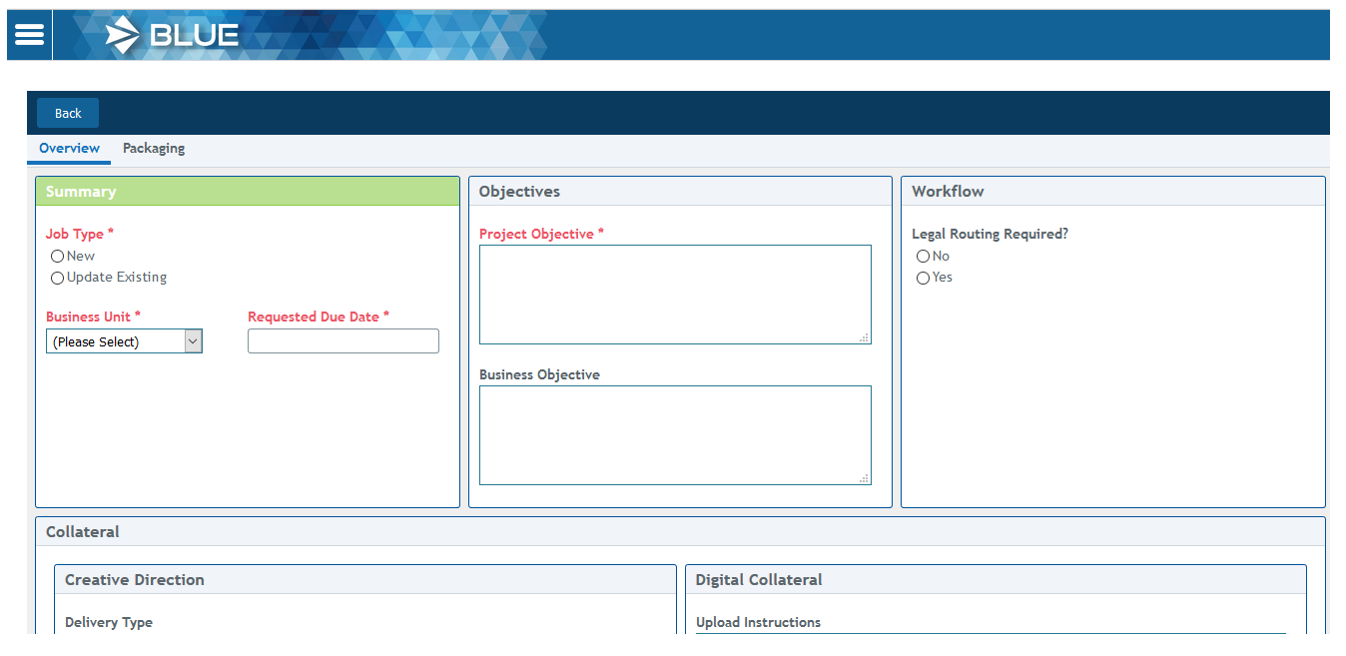
The sample screenshot below is a partial display of a Form with Two tabs (‘Overview’ and ‘Packaging’). Fields in Red are required, other fields are optional.
Why use forms?
Here are a few basic scenarios where Forms might be helpful:
1. Basic use of Forms to collect and display data:
The first few steps of a workflow require data entry from different people to gather project or SKU information prior to the creation of artwork.
Form Task 1 = Marketing enters brand information
Form Task 2 = Quality views Marketing information (can edit a field or two) and additionally provides an ingredients list and nutritional information
Form Task 3 = Legal provides disclaimers and/or warnings
Form Task 4 = Project manager reviews all data entered, can edit some (or all) and provides additional instruction. Upon completion the rest of the workflow is executed (artwork upload, review, etc.)
2. Completed Form used as a Reference File:
The first few steps of a workflow require data entry from different people. The data collected needs to be a reference document / file downstream to assist in artwork creation or approval.
Form Task 1 = Marketing enters brand information
Form Task 2 = Quality views Marketing information (can edit a field or two) and additionally provides
Form Task 3 = Project manager reviews all data entered, can edit some (or all) and provides additional instruction. Upon completion of the task, a PDF of the Form is automatically created and inserted into the subprocess as a reference file for use in downstream tasks.
3. Form Approval:
The first few steps of the workflow require data entry from different people. The resulting data is displayed as a Form which can be marked-up and approved / rejected using online proofing. If rejected, the workflow loops back to the Form task(s) where user(s) can update the form data as needed for another review cycle.
Form Task 1 = Marketing enters brand information
Form Task 2 = Quality views Marketing information (can edit a field or two) and additionally provides an ingredients list and nutritional information
Form Task 3 = Project manager reviews all data entered, can edit some (or all) and provides additional instruction (This task is configured to automatically generate an approval candidate when this task is completed)
Proofing Task 4 = Reviewer-1 annotates and approves / rejects the form using online proofing.
* If Reviewer-1 rejects the Form while proofing, the workflow loops back to Task 3 above (it could be configured to loop back to Form Task 1 or 2). Data from cycle-1 is still available in the form for editing, and the project owner can open the annotated PDF in online proofing while updating the data.
Who can create and use forms?
BLUE administrators have access to create and manage forms. Once created, the administrator associates the form to ‘Complete Form’ task(s) within a process template.
Standard BLUE users interact with the form to enter and view metadata (custom fields) during the course of a workflow.
How do I create forms? (administrator)
BLUE administrators can create and edit forms by selecting ‘Form Template Administration’ from the Advanced administration menu.
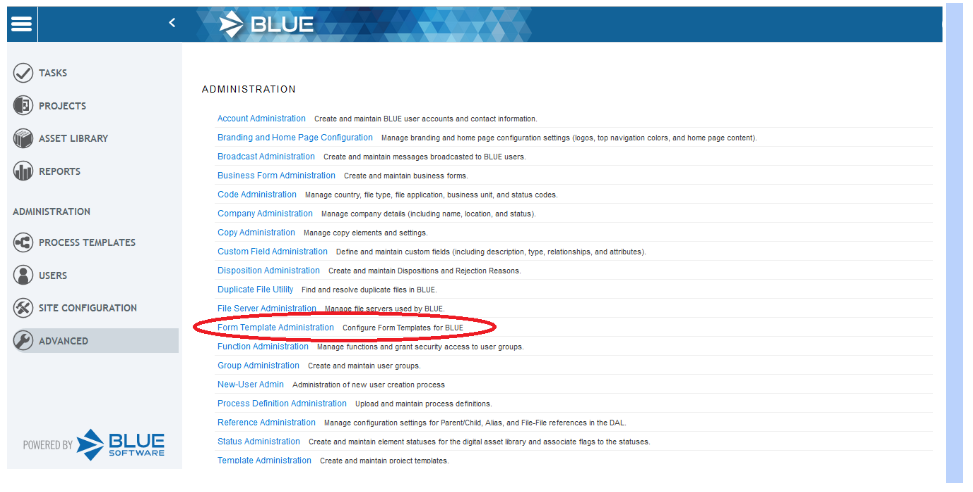
Forms Administration
After selecting ‘Form Template Administration’, the administrator is brought to the forms administration screen which by default lists all ‘enabled’ forms within the system.
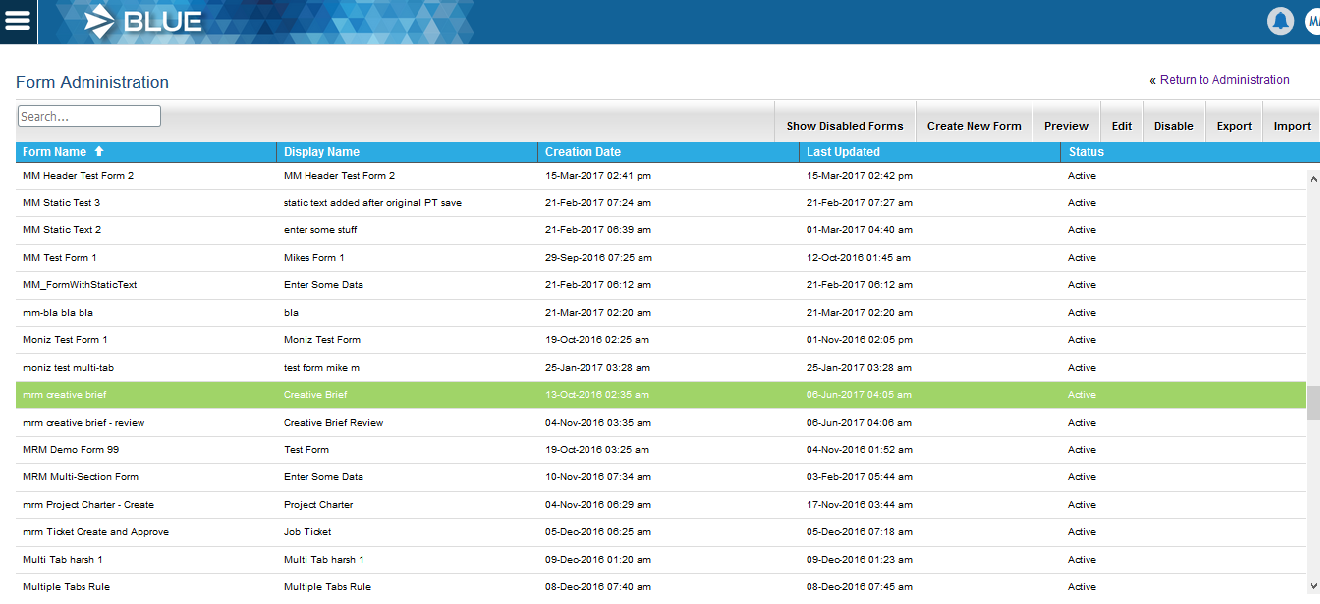
From the forms administration page an administrator can:
- Use the search dialogue to search for forms with matching name
- Toggle the list to show / hide ‘disabled’ forms
- Create a new form
- Preview the selected form
- Edit the selected form
- Disable / enable the selected form
- Export the selected form
- Import a form that was exported from this or another BLUE system
Disabling a form (administrator)
Disabling a form prevents the form from being selected while configuring a process template. Disabled forms will continue to be used by process templates that have already been verified and saved.
Previewing a form (administrator)
Previewing a form allows the administrator to view the layout of a form as it would be displayed to an end user. The administrator can also interact with fields and buttons on the form to test (most) of the form rules that may have been configured.
Form rules are described below. Certain rules, like those based on the users group (role) can’t be tested in preview mode.
Exporting and importing forms (administrator)
Exporting and importing forms is a tool that can be used by administrators to ‘copy’ a form from one system to another – an example would be to export a form from a development environment and import it to a production system.
Exporting a form
To export a form, simply select the form in the Forms Administration page and select the  button. Your browser will prompt you save the file to your local machine. Forms are saved as .json files
Importing a form
To import a form, select the  button in the Forms Administration page. You will be prompted to navigate to a file to import. Select a “.json” file previously exported. When the form is imported, you will be placed in the forms editor. Once in the Forms Editor, you will need to (at a minimum):
- Enter a form name
- Enter a form title
- Save the form
Note: Because forms are a vehicle to enter and display custom fields, it is a best practice to ensure that field(s) referenced in the form exist in the target environment prior to the import.
If you import a form that references custom fields that are not defined in the system, the import will be successful. When the form is opened in the editor, visual cues will assist in identifying which form fields need to be addressed. The screenshot below is an example of a form imported to a system where none of the custom fields were defined:
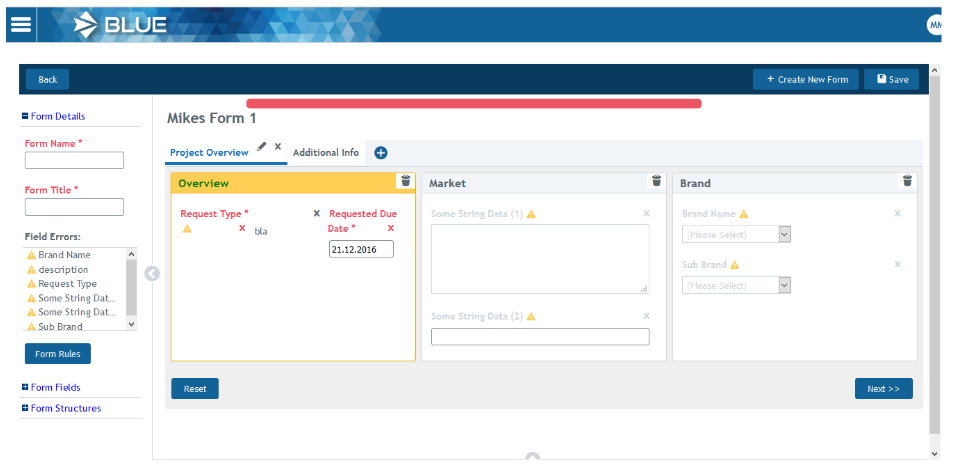
In the screenshot above – visual warnings (yellow triangles) are provided for each field where the administrator must take an action. In this case, the administrator could either:
1. Click on the form field(s) containing a warning and assign a similar custom field already defined in the system.
2. Save the form, create a new custom field(s), then re-edit the form to select the newly created field.
Tip: Notice also that the left navigation panel contains a list of all fields within the form that need to be addressed. The list is updated as errors are fixed. The Field Error list comes in handy when the form contains errors are on tab(s) that are not currently visible to the user.
.
Creating a new form
To create a new form, select  button from the Forms Administration page. A blank form will be displayed as seen here: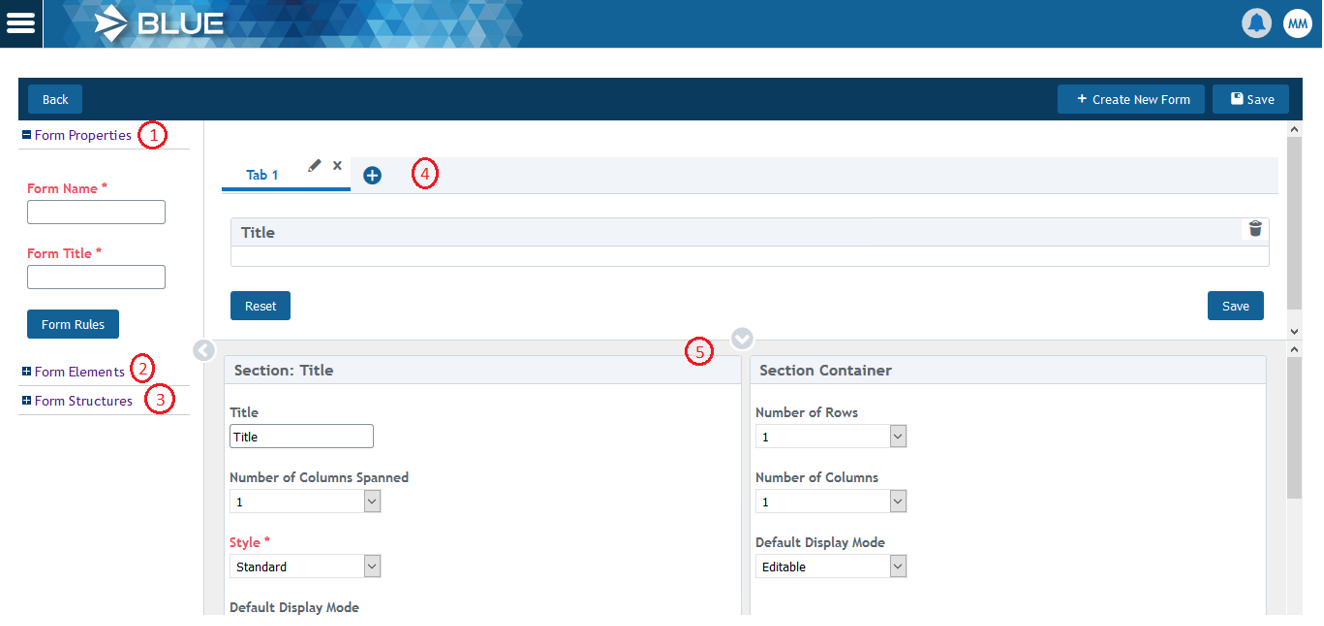
Form editor sections
The form editor contains 5 primary sections:
1. Form Properties
– Form Name (required): Descriptive name used by administrator only
– Form Title (required): Text end user will see in the title bar
– Form Rules (button): Opens Form Rules Builder (see below)
2. Form Elements
This section allows the administrator to drag a control onto the form (e.g. check-boxes, radio buttons, text areas, etc.)
3. Form Structures
This section allows the administrator to drag a container to the form. Container types are:
– Blank Container
– Tabbed Container
4. The form itself is represented in the center of the screen – referred to as the ‘canvas’.
5. Properties Panel – Allows the user to configure properties of the selected field or form container (tab, section, etc.).
Configuring a tab
As shown in the screenshot above, a new Form has one Tab (named ‘Tab 1’ by default). Tab names are only visible to the end user when more than one tab is present on the Form.
To add additional tab(s), select the  icon next to the tabs.
To edit the properties of a tab, select the pencil icon  next to the tab name.
To delete a tab, select the ‘x’ next to the pencil icon.
Tab properties
Selecting the pencil icon  will open the tab properties panel on the bottom half of the canvas. From here you can configure:
| Tab Title (required) | Visible only if there is more than one tab on the form |
| Visibility | Tab and contents are either visible or hidden by default |
| Verify required fields on tab change |
If selected, the end user will be required to enter data into all ‘required’ fields on the tab before they can advance to the next tab. If deselected the end user can move from tab to tab without entering required fields. On submission of the form missing fields marked as required will be brought to the end user’s attention. |
Form structures / containers
The Form Structures drawer in the left navigation lets you drag new tabbed or blank containers to the form. There’s no limit on nesting of containers.
Form Elements (drop-down boxes etc.) can be added directly to any container.
Tip: You can ‘split’ containers using the ‘number of rows / columns’ properties, then use the ‘number of columns spanned to make some larger than others’.
Tip: To help align items on the form, try adding multiple containers and spans, then set the containers style property to ‘no-border / title’. End users will not see the borders around the container but the fields within the containers will still be sized and aligned.
Clicking on the title bar of a container will open its Properties panel. Through the properties panel you can configure the following:
Title |
The title of the container / section is displayed to the end user |
Number of Rows |
Will split the container into sections (up to 10 rows) |
Number of Columns |
Will split the container into sections (up to 4 columns) |
Number of Columns Spanned |
If the container was split into 4 columns, you can control how many of the four columns each individual ‘piece’ should occupy |
Style |
Color / style for the border of the container (no border, green, red, yellow) |
Visibility |
Should the container and its contents be visible or hidden by default? Visibility can be changed using form rules |
Default Display Mode |
Editable / view Only. Can be changed using form rules |
Expand / Collapse Enabled |
If checked, the form will contain a ‘+’ or ‘-’ icon to the user, allowing them to expand or collapse the section when working with the form |
Remove Button Enabled |
Future functionality – please disregard |
Form fields
To add a custom field to a form, expand the list of ‘Form Fields’ in the left navigation panel of the form editor. Select a field and drag it to the within the desired container. Once the field is in the container, you can re-position fields within the container using the mouse.
Here’s a screenshot of the expanded ‘Form Fields’ drawer within the left navigation panel of the Form Editor:
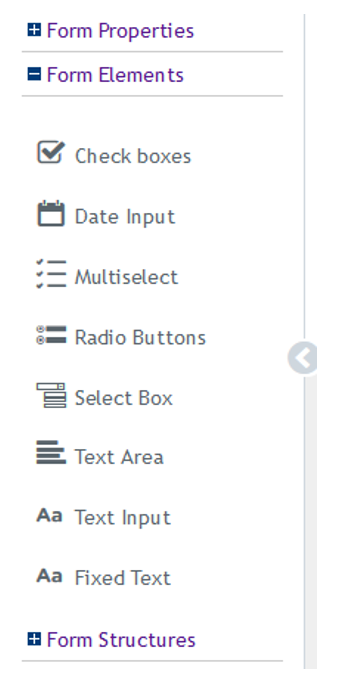
Each form element is associated with specific types of custom fields:
- Multi select, check-boxes, select box and radio buttons can be used with custom fields defined with preset values
- Text areas and text input fields can be used with custom fields defined as a string or number
- Date input can only be used with custom fields defined as a date
- Fixed text allows you to enter ‘helper text’ on a form – this field is not associated with a custom field – it’s just a way to enter static text on a form that will be seen by end users.
Once a field control is dropped onto the canvas, the properties panel for that control (field) will open in the bottom portion of the canvas. In the properties panel for an element you can configure:
Custom Field
|
Select the custom field this control will be associated with |
Label |
By default you will see the label defined in Custom Field Administration but you can override it to something different for the form user |
Width |
The field can take either the entire width of the container or a portion of it |
Display Mode |
Editable / view only |
Required (checkbox) |
If checked, the user must enter a value in this field to submit the form |
Disabled (checkbox) |
If checked, the value selected / seen is sent with the form but the control is not editable by the end user |
Visibility |
Default visibility of the field (visible or hidden). Form rules are used to change visibility |
Utility Only (don’t submit) (checkbox) |
The value selected on the form is not saved. These are typically fields on the form the user selects which change the layout of the form (e.g. if the user selects ‘Translations Needed’ on the form which makes an additional field appear where they now need to translate the language) |
Display All Values (checkbox) |
Used with preset fields. If checked, all preset values will appear to the end user. If unchecked, the administrator selects which values should appear for the end user |
Activate Display Tip (checkbox) |
If checked, the administrator can enter helper text which will appear as a tool tip to the end user |
Form rules
The Form Details drawer in the left navigation of the Form Editor allows you to configure form Rules.
The rule builder is intuitive, allowing you easily create rules by selecting values from drop-down items and/or clicking directly on the form fields you want to base the rule and be affected when the rule is executed.
Here’s just a few of the types of things you can do with Form Rules:
- Show / Hide fields and entire sections
- Set default values or available values of fields
- Set fields to editable / view-only, enabled / disabled, or required / optional
- Change tab or container titles on-the-fly
Examples of what a rule might do:
- If the value of Brand is ‘a’ or ‘b’ then hide form-tab-2, make sub-brand required and set it’s available values to only be ‘xtra-strength’ and ‘maximum strength’
- If the users Role is ‘Marketing’ then hide the legal-section and show the marketing-section
To create a new rule Based on the value of a field on the form:
- Click
 button
 - Enter a name for the rule
- Select ‘Form Element’ as the e type of controller
- Click
 button
 - Click on the field within the form that you want the condition to be based on
- Select the ‘Condition Type’ (e.g. on-change, value, load)
- Select the actual value(s) of the condition
- Select the value of the condition
– Ex. ‘is equal to’, ‘is not eqal to’, - If you want the condition of the rule to be based on more than one field click ‘Add ‘and’ Rule’ link and repeat steps 2 thru 8
- Click on
- Click on the field (or tab / section) within the form that you want to impact
- Select an ‘Affect’ (e.g. required, hidden, disabled, set value, set available values…)
- Depending on the ‘Affect’ selected, you will be prompted to set the actual value(s) or provide other information
- If you want to have more than one field or section impacted when the rule fires, Click ‘Add a Dependent’ link and repeat steps 10 thru 13
- When your rule is complete, click the
 button to save and minimize the rule
To create a new rule Based on the value of a field on the form:
- Click
 button
 - Enter a name for the rule
- Select ‘Role / Group’ as the e type of controller
- Select ‘Logged in User’ as the Condition Type
- Select ‘Is Equal To’ or ‘Is Not Equal To’ as the condition
- Select the Role(s) that will make the condition true
- Follow steps 10 thru 15 above to complete the rule
Tip: Rules based on field values are fired dynamically as users interact with the form and changes a selection or value. You will typically need several rules to ensure the form sets and re-sets fields properly as the user clicks around on the form then changes their selection to something else.
How to configure a process template to use forms? (administrator)
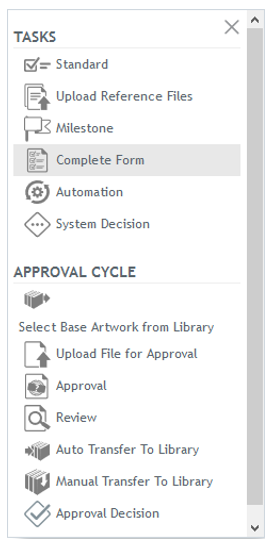
Forms are made accessible to end users by configuring a ‘Complete Form’ task within a process template.
Drag and drop a Complete Form task to your Process template.
If you need different people to collaborate in completing the data on a form you will need multiple Complete Form tasks. Each task could call a unique form to display only the fields that each user needs to see and / or enter.
Another approach could be to have all of the form tasks point to a single form that uses Form Rules to dynamically ‘format’ the form based on the user (or some other condition).
Configuration of the Complete Form task is similar to other user facing tasks. Properties specific to this type of task are explained below.
For the form task, on the Form (drop-down) – select a form to associate with this task.
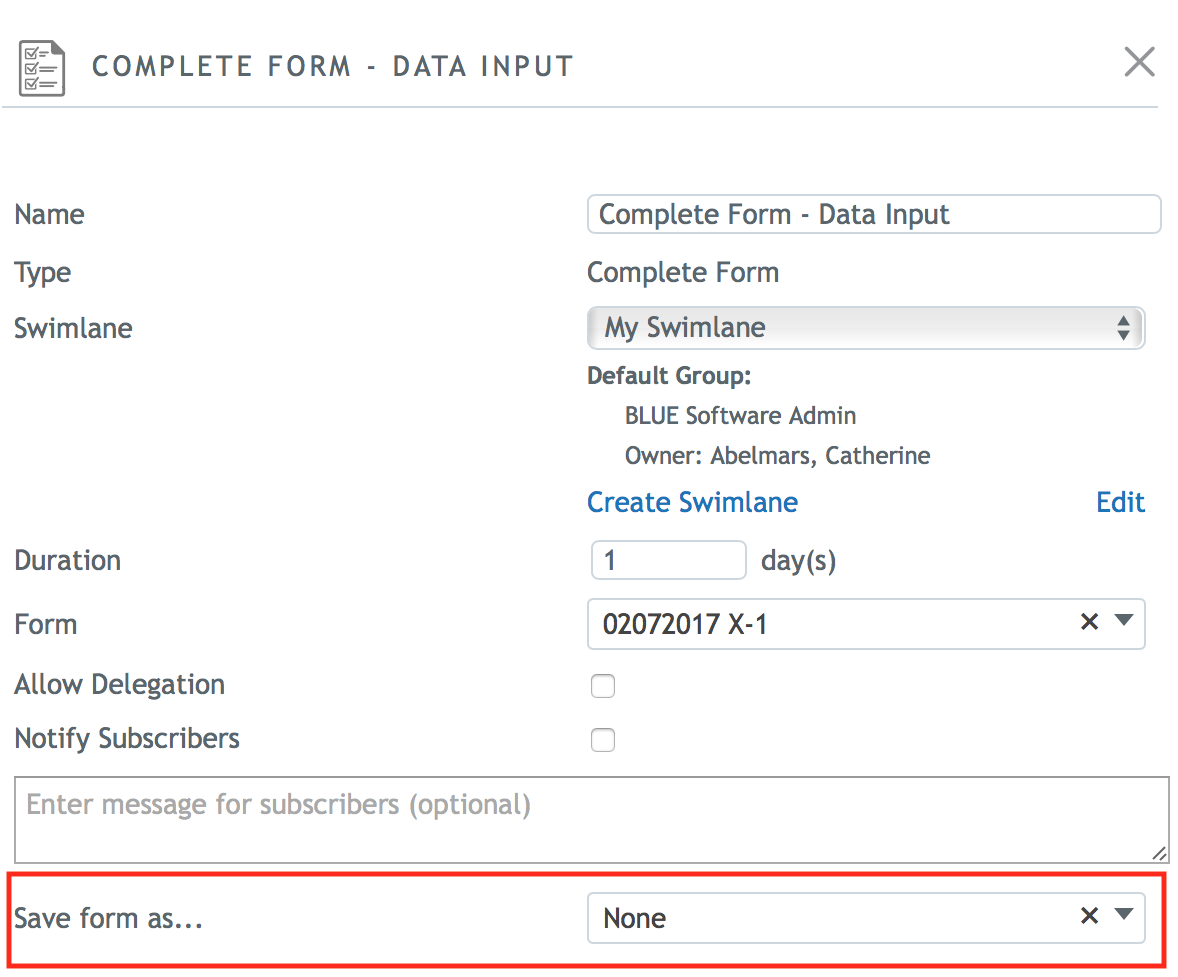
Save form as (drop-down)
None. The form is just being used for data input. Users can still ‘save as PDF’ to their local machine at any time.
– No additional configuration parameters needed
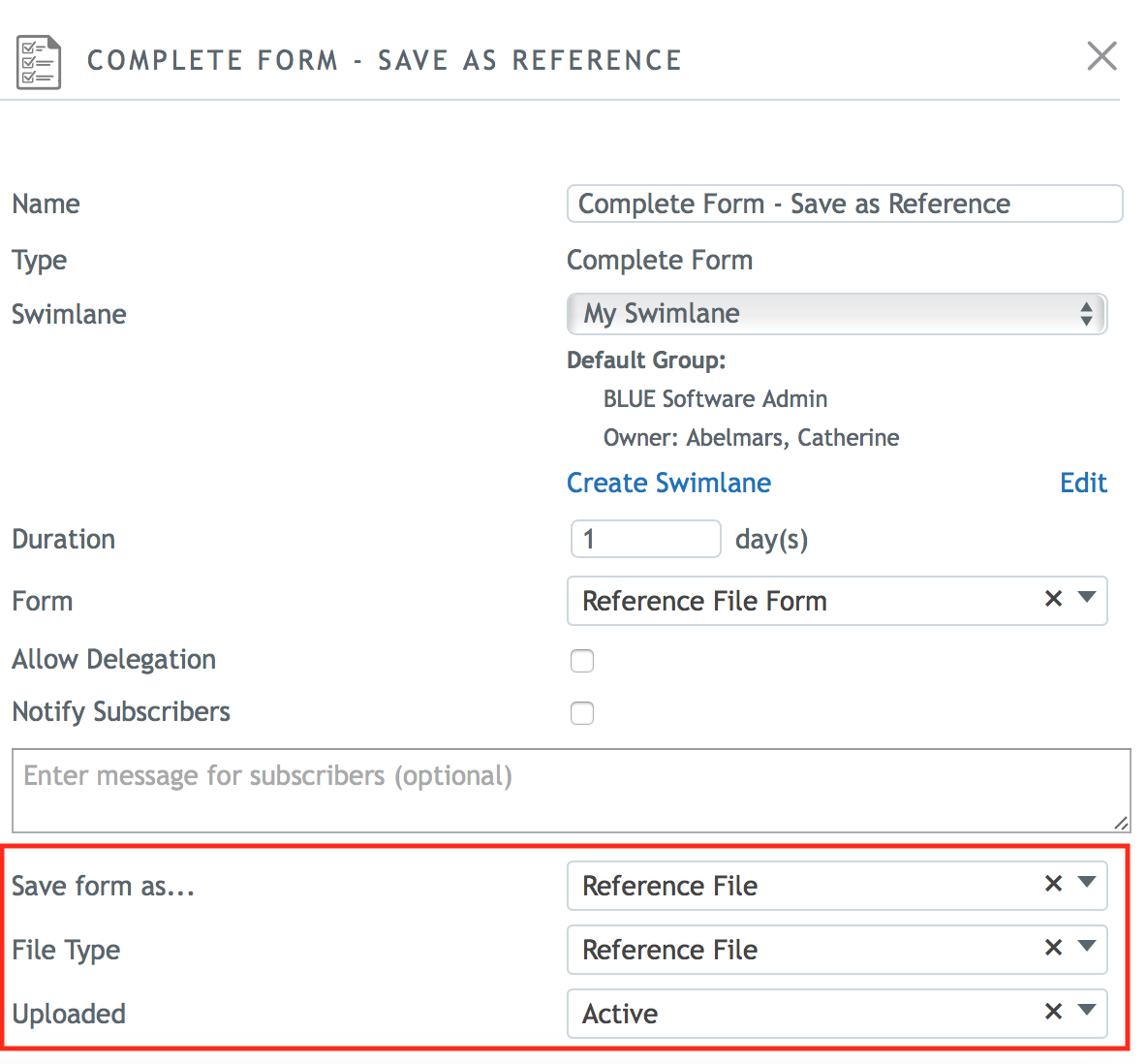
Save form as… Reference File. Upon completion of this task, a PDF will be generated and saved as a reference file to the (sub)-process.
– File Type is required
– Status mapping for the Uploaded state is required
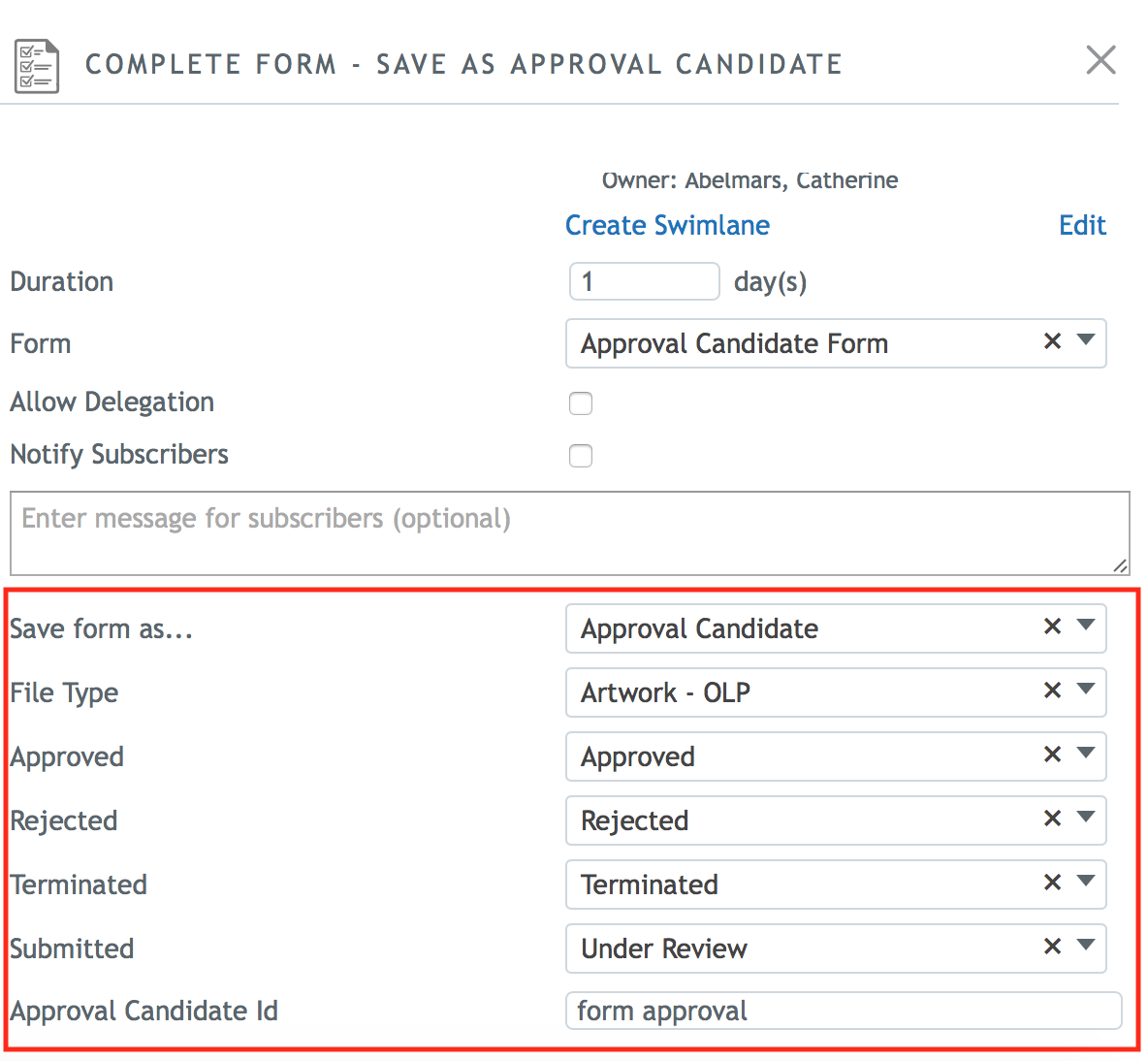
Save from as… Approval Candidate. Upon completion of this task, a PDF will be generated and saved as an Approval Candidate for downstream approval via the Approval or Review task.
– File Type is required
– Status mappings for the Approved, Rejected, Terminated, and Submitted states are required
– Approval Candidate ID is required
Configuration tips when saving the form as an approval candidate (administrator)
Tip: The reject path of your Approval Decision should loop back to a Complete Form task.
Tip: If you open a form in cycle-2 (after a rejection) and the data entered in the previous cycle is not visible, go to Advanced Configuration >> Template Administration and ensure the Custom Fields in the Complete Form task are HOMED at the sub-process level and EXTENDED to the Complete Form task.
Standard BLUE behavior for Custom Fields homed at a task, is that the value of required Custom Fields (only) are copied from the previous cycle. Values for Optional Custom Fields are not copied forward to the next cycle.
Tip: Make sure the Approval Candidate ID is in sync with following Approval and Review tasks, but different than other Approval Candidate IDs that might be used elsewhere in the workflow (e.g. For actual artwork files)
How do I use forms? (end user)
Forms are accessible from the workflow task details. The ‘Complete Form’ task allows end users to open a form. If the task is still in progress the form is editable – allowing the user to enter and save form data. Once the task is completed, the form can still be opened, but in a view-only mode.
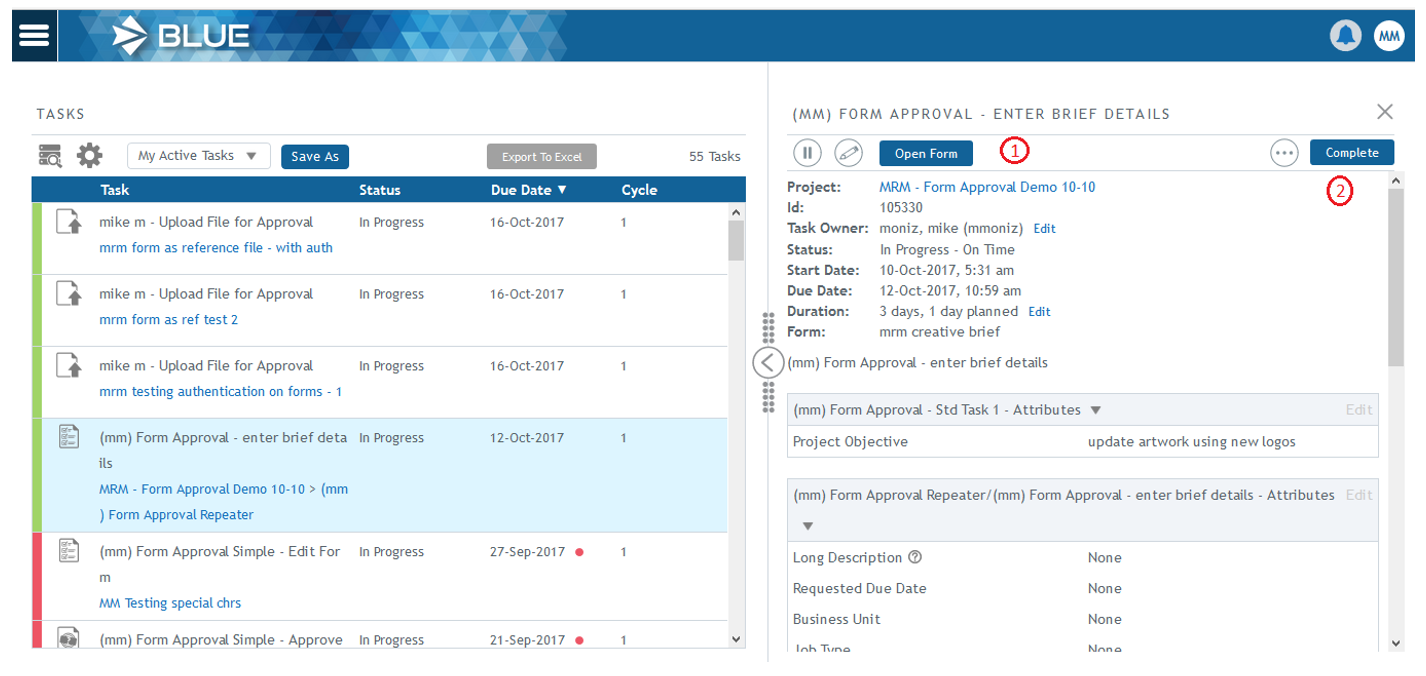
In the screenshot above:
- The
 button is enabled because the task is still ‘In Progress’. Selecting this button will open the form in edit mode, allowing the user to enter, update and save data on the form.
 - After saving form data, selecting the
 button will complete the form task and advance the workflow.
Note: If there are no required fields on the form task, it would be possible to the form without first opening it and entering data. Here’s a sample of a form as the user would see it when opening it prior to completing the task:
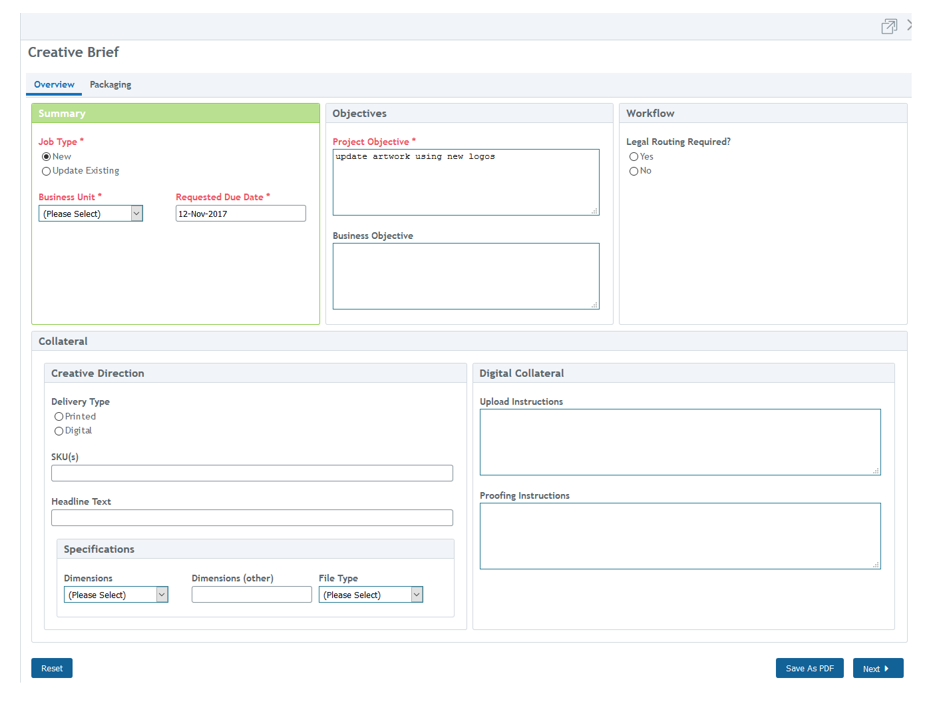
The form above has two tabs (‘Overview’ and ‘Packaging’). Because the task is still in-progress, the user can edit and save data.
- Fields in red containing an asterisk are required
– All required fields must contain a value for the form data to be saved
– Validation can be configured to occur when the user attempts to switch tabs or when the <save> button is selected. - Fields in gray or black are optional
- Select the
 button to reset the form to its original (default) values
 - If the form contains multiple tabs as seen above the user can navigate between tabs by either clicking on the tab itself, or using
 and <Previous> buttons on the bottom of the screen.
– To complete the task, select the <Save> button
– Note: The <Save> button only appears on the last tab of the form
Note: Closing the form window by selecting ‘x’ will not automatically save data entered into the form.
When a Complete Form task has been completed (submitted) the workflow advances to the next step. If a user opens a form for a completed ‘Complete Form’ task the user will view the form in a view-only mode.
Saving a form as a PDF file
When a form is open for editing or viewing, the user can select the  button to generate a PDF of the form and its data. Your browser will prompt you to either open or save the file locally.
Once the PDF file is saved locally it can be distributed to others or even uploaded back into the workflow as a reference document or file to be reviewed / approved downstream in the workflow. The PDF version of the form will look exactly like the online rendering with one exception. Forms that contain multiple tabs, we be ‘flattened’ to a single page PDF.
Note: ‘Save as PDF’ will create a PDF rendering of the form using the current (saved) values in the system for Custom Fields contained within the form.