The following sections contain information to help you manage the review cycles in your BLUE projects. You will learn how to bypass Reviewers and / or Approvers with tasks in subsequent review cycles.
What is a review cycle?
A review cycle is defined on the process template, it is the process that contains tasks for uploading, reviewing, and approving an artwork file. While a project is in progress, project and / or sub-process owners have the option to determine which completed reviews and / or approvals are to be included in subsequent cycles, when the approval files have been rejected by one or more review or approval tasks during a review cycle.
Who can manage a review cycle?
A back-end system configuration allows project or sub-process owners to manually bypass reviewers and / or approvers on subsequent review cycles. The back-end configuration can also be set so that all task owners are included on all subsequent cycles, it can be set to automatically bypass approvers who have completed their task with approved stamp. The back-end configurations will also define if a cycle is automatically suspended on rejection to allow manual changes to the assignees.
Exploring and managing the review cycle
Once the first cycle is complete and if the system is configured to suspend the next cycle and allow the project or sub-process owner to bypass/unbypass previously approved or completed tasks.
Here are the steps the project or sub-process owner need to take:
1. On the project or sub-process view click on the gear icon above the tasks on the left corner and then check the box next to “Enable multi-select”

2. The project or sub-process owner will be able to multi-select tasks to bypass. Furthermore, the status of the previous cycle is displayed under the current status.
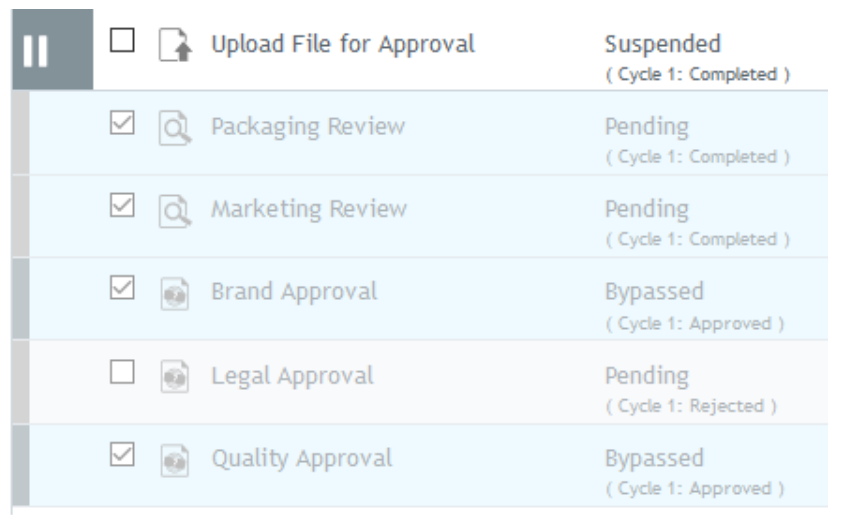
3. On the right side of the screen the project or sub-process owner will see the list of selected tasks with allowed actions that can be taken.
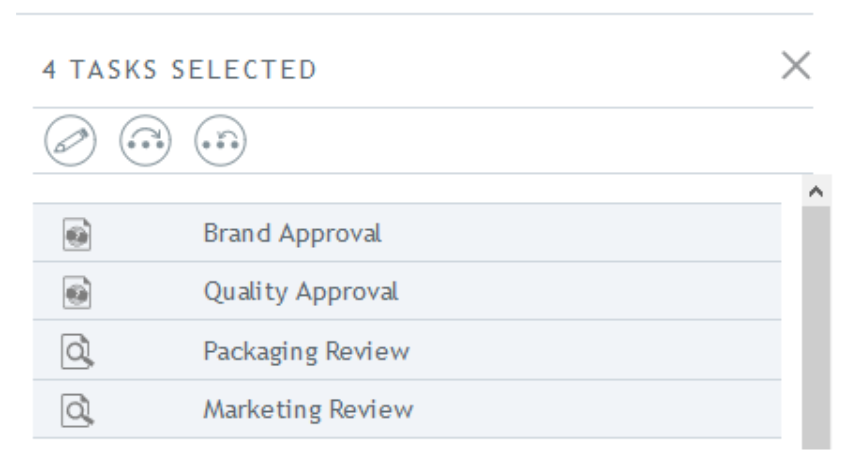
4. To bypass tasks click on the icon 
5. To unbypass tasks click on the icon 
6. When clicking on of the action icons only tasks that can be bypassed or unbypassed will be listed on the confirmation window
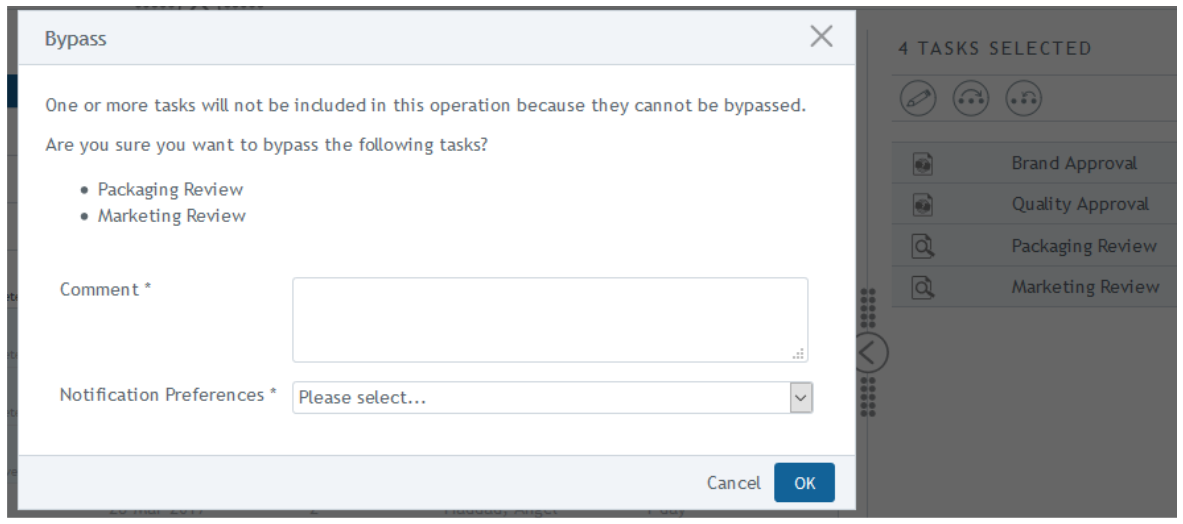
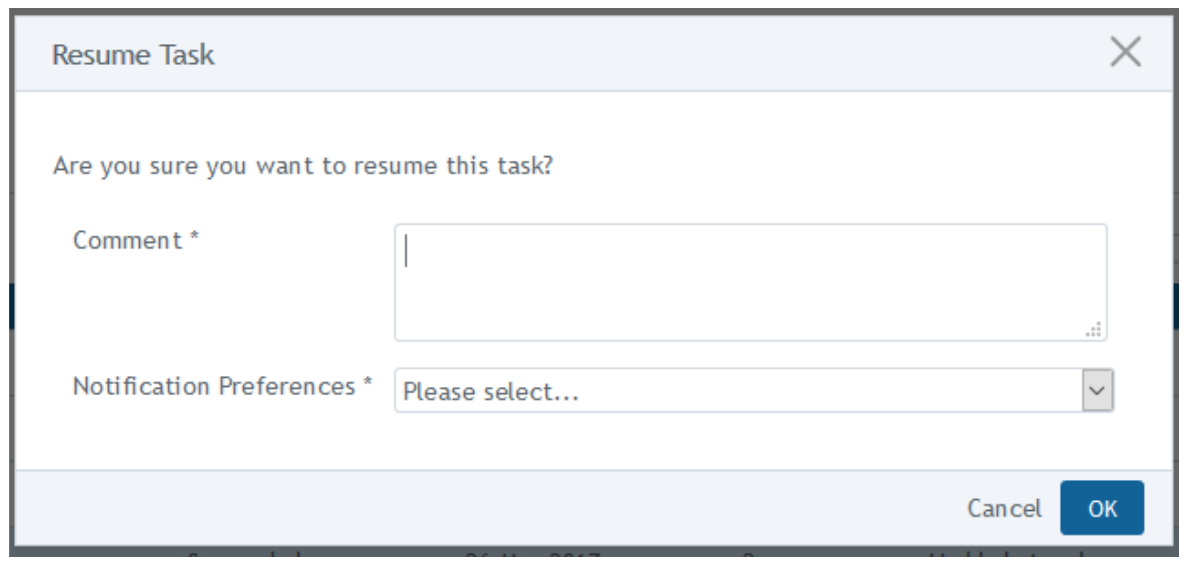
7. Please provide a comment and select a notification preference and click “OK”
8. Finally to resume the cycle, select the task with the pause icon next to it.
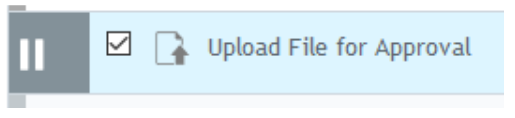
9. And click resume on the right side.

10. Please provide a comment and select a notification preference and click “OK”
Back-end configurations and expected behavior
Note: These are site-wide configurations. Please check with your administrator to find out how your site is configured.
Suspend Cycle on Rejection |
Auto
|
Behavior |
| False | False | The cycle 2+ will not be suspended and all tasks are included in cycle 2+ |
| False | True | The cycle 2+ will not be suspended, all Review tasks will be included, and all approved Approval tasks will be automatically bypassed on cycle 2+ |
| True | False | The cycle 2+ will be automatically suspended and all tasks will be included on the next cycle. The project owner or the summary task owner will be notified by email, but they cannot manually bypass approval or review tasks unless the task has “allow manual bypass” set to true on the template settings |
| True | True | The cycle 2+ will be automatically suspended and all approved Approval tasks will be automatically bypassed on cycle 2+. The project owner or the summary task owner will be notified by email, and they will be able to bypass/unbypass approval and review tasks on cycle 2+ regardless of the allow manual bypass setting on the workflow template |