Compare view
Compare cycles to ensure that important changes have been made. There are five compare modes that you can use to compare cycles, including four overlay modes and one side by side mode.
Compare modes
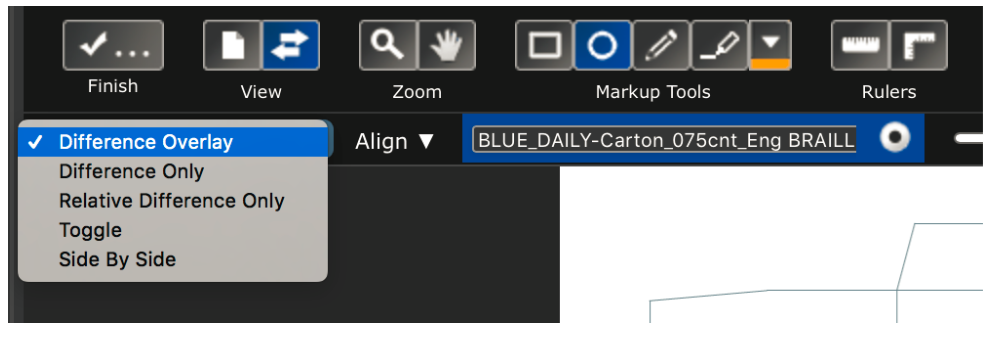
Summary of compare modes
Difference Overlay |
Changes are highlighted in bright green. |
Difference Only |
Changes are highlighted in bright green and common areas are white. |
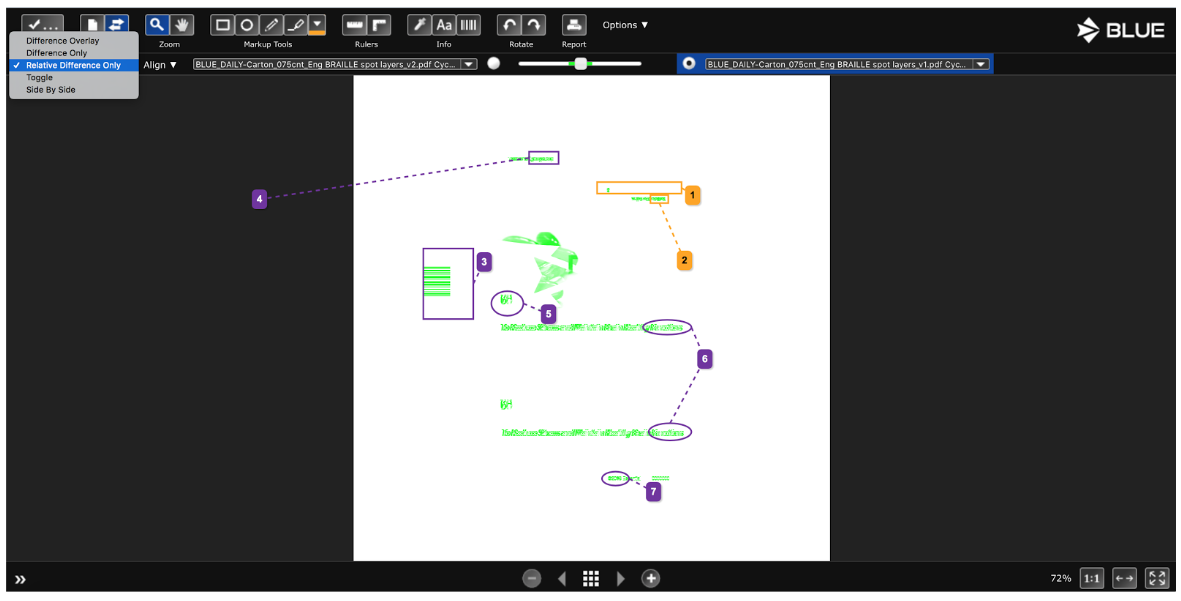
Relative Difference Only |
Changes are highlighted in shades of green: the greater the difference, the brighter the green. Common areas are white. |
Toggle |
Shows both files in an alternating pattern. Use the Play/Pause button to start and stop the toggle. |
Side By Side |
See both cycles next to each other. Unlock the views so you can zoom and pan each page separately. |
Cycle Drop Down
Select the cycles you wish to compare on the drop down.
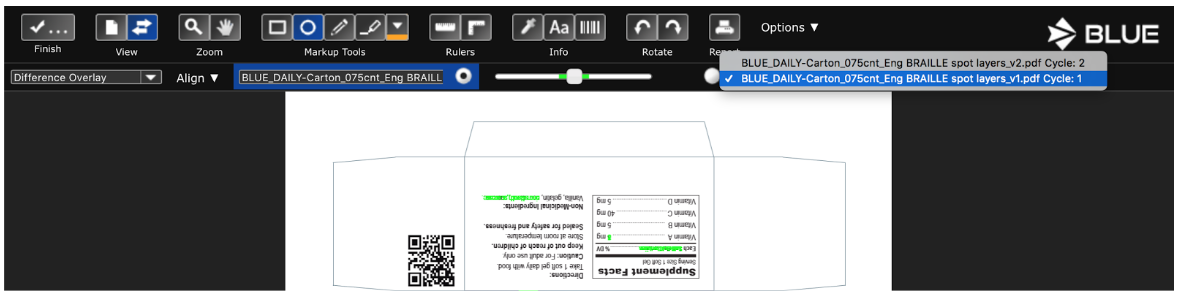
Active File Toggle
The active file toggle determines which annotations and approvals you see. Select a cycle to make it active and view its annotations and approvals. In the following example, Cycle 1 is active so you can see its annotations and approvals.
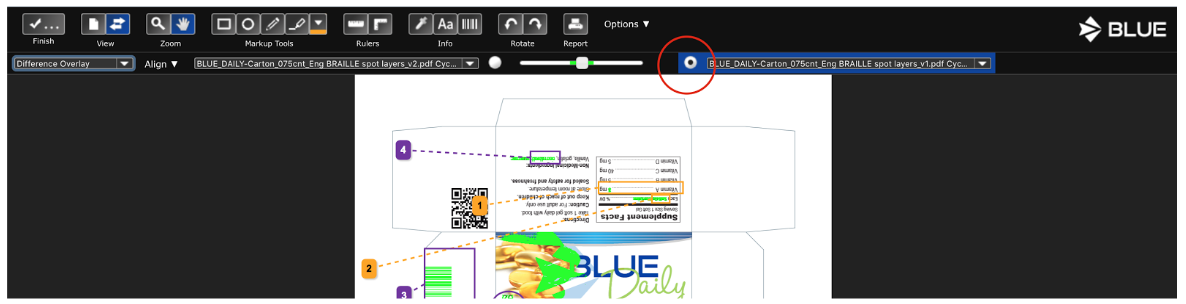
Transparency Slider
The position of the transparency slider determines which cycle’s page image you are viewing. Move the slider to change the page image from one cycle to the next.
View Differences in Green
When the slider is in the middle green section, cycles are overlaid on top of each other and differences are highlighted in bright green.
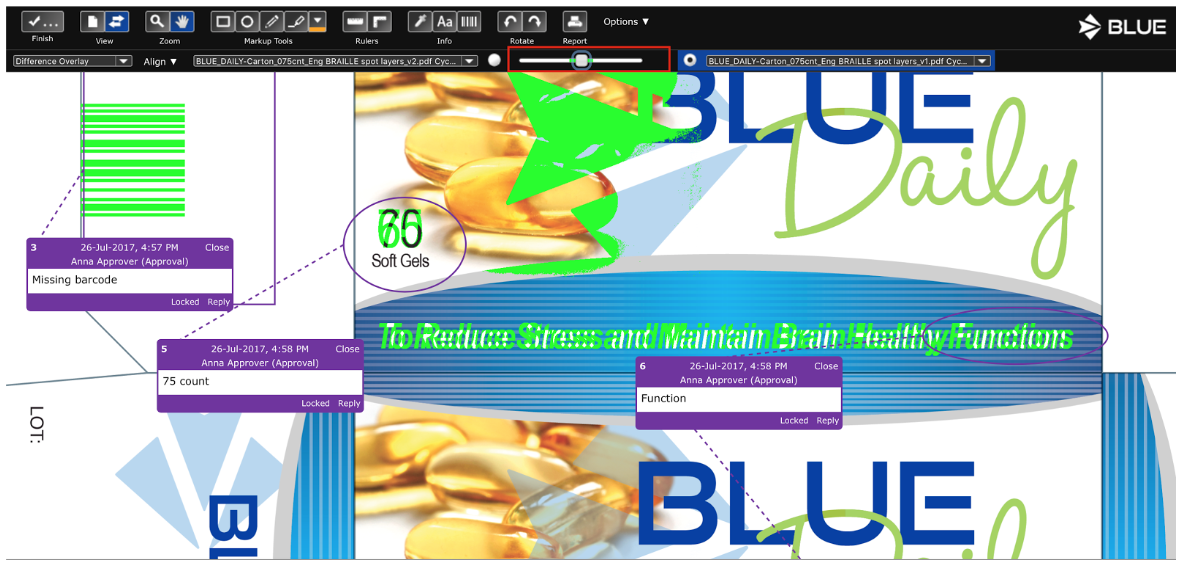
View Cycles Superimposed
When the slider is just outside the green section, see both cycles at the same time. Files are superimposed on top of the other, with transparency applied.
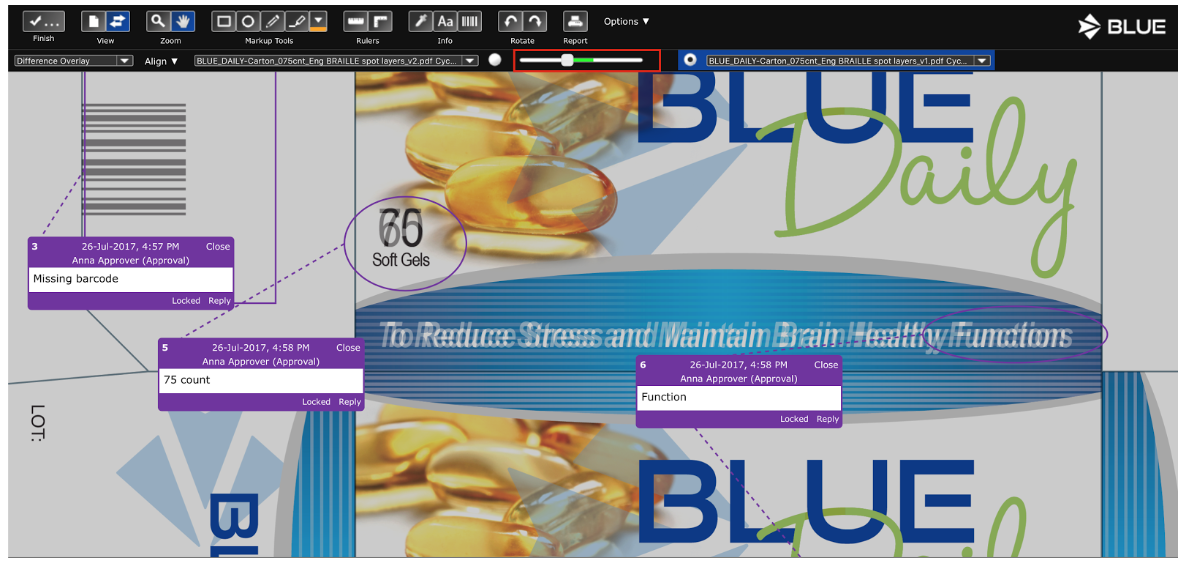
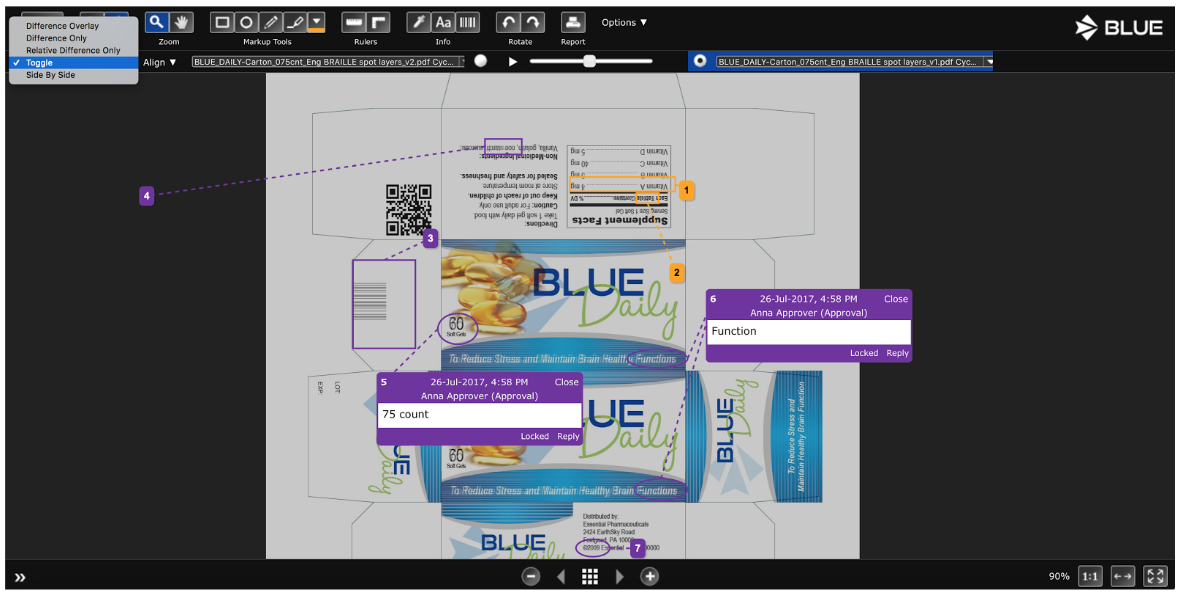
View Previous Cycle Markup on Current Cycle
View previous cycle markup on top of the current cycle page image. In the following example, the Cycle 1 annotations are on the Cycle 2 page image, which allows you to verify that the changes requested in Cycle 1 have been made in Cycle 2.
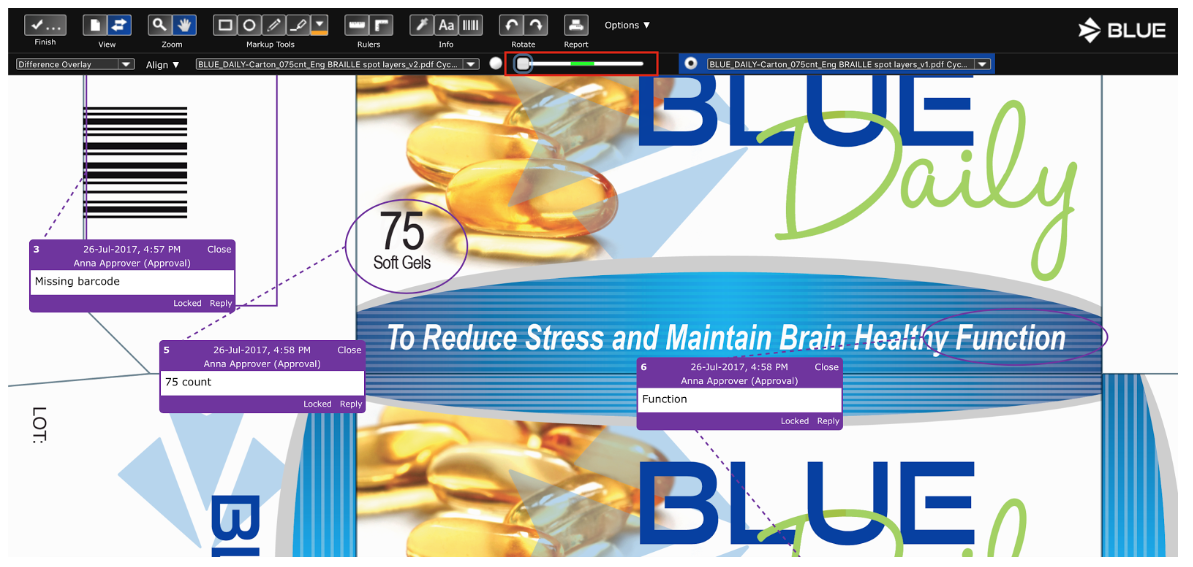
Zoom and Pan
While in Compare View, zooming and panning is applied to both cycles. You can zoom in to compare images while the pages are overlaid on top of each other, or side by side.
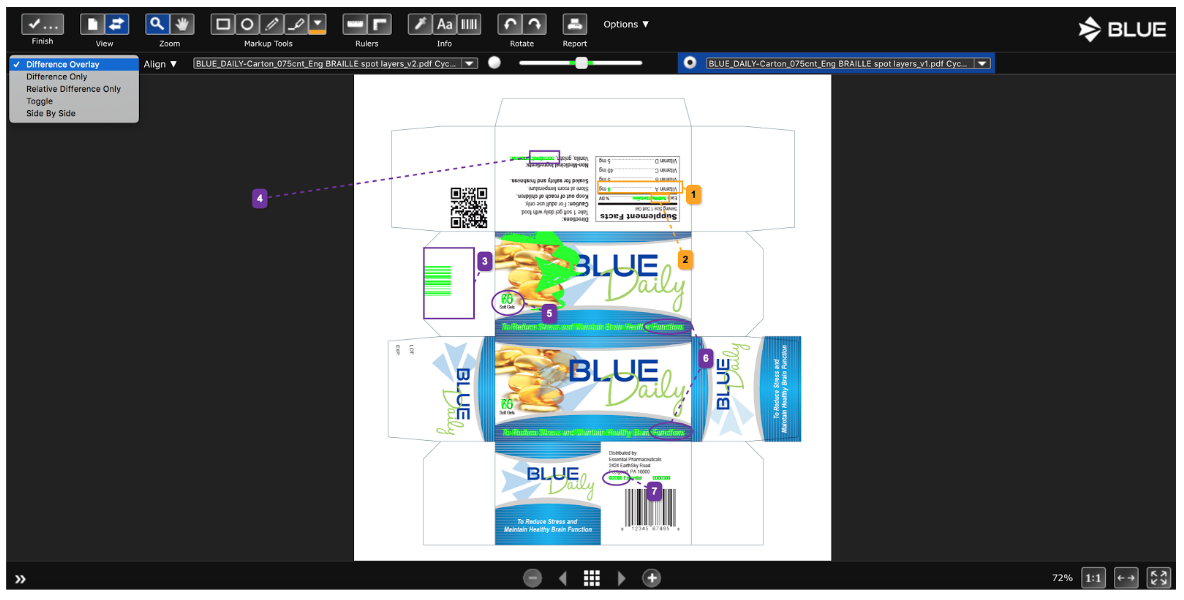
Difference Overlay
View cycles overlaid on top of each other. Differences are shown in bright green when the transparency slider is in the green section. Adjust the transparency slider or change the active file.
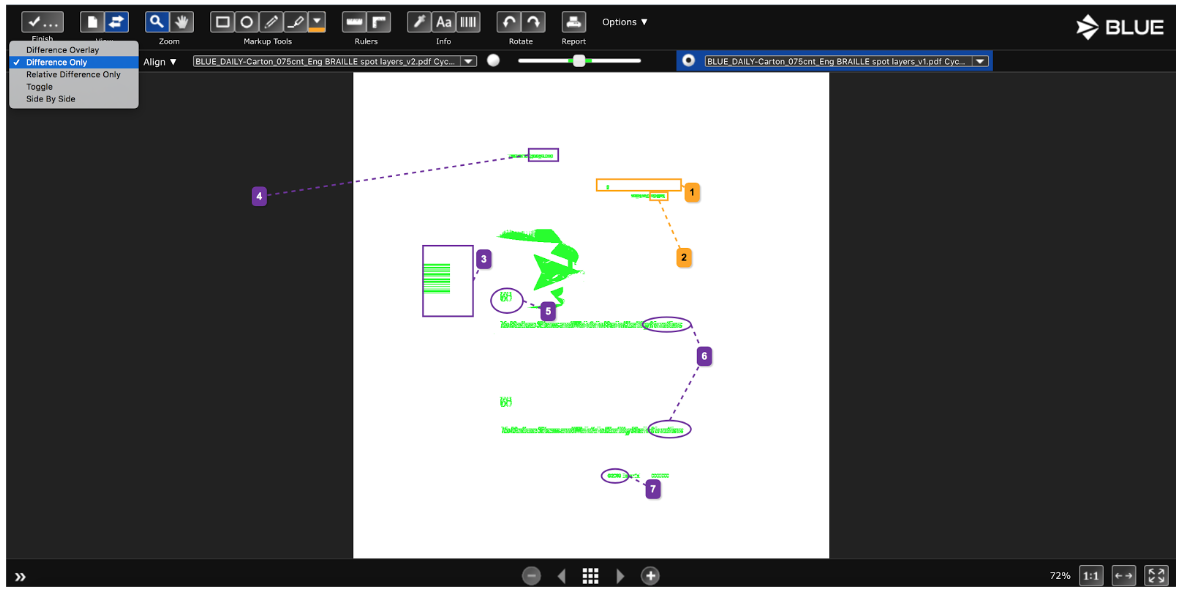
Difference Only
View cycles overlaid on top of each other. Only the differences are shown in bright green when the transparency slider is in the green section. Common areas are white. Adjust the transparency slider or change the active file.
Relative Difference Only
View cycles overlaid on top of each other. The intensity of green highlight varies depending on how big of a difference there is. Greater differences are represented with a brighter green, whereas subtle differences are shown in light green. Adjust the transparency slider or change the active file.
Toggle
View cycles overlaid on top of each other in an alternating toggle pattern. Stop the toggle using the Pause button.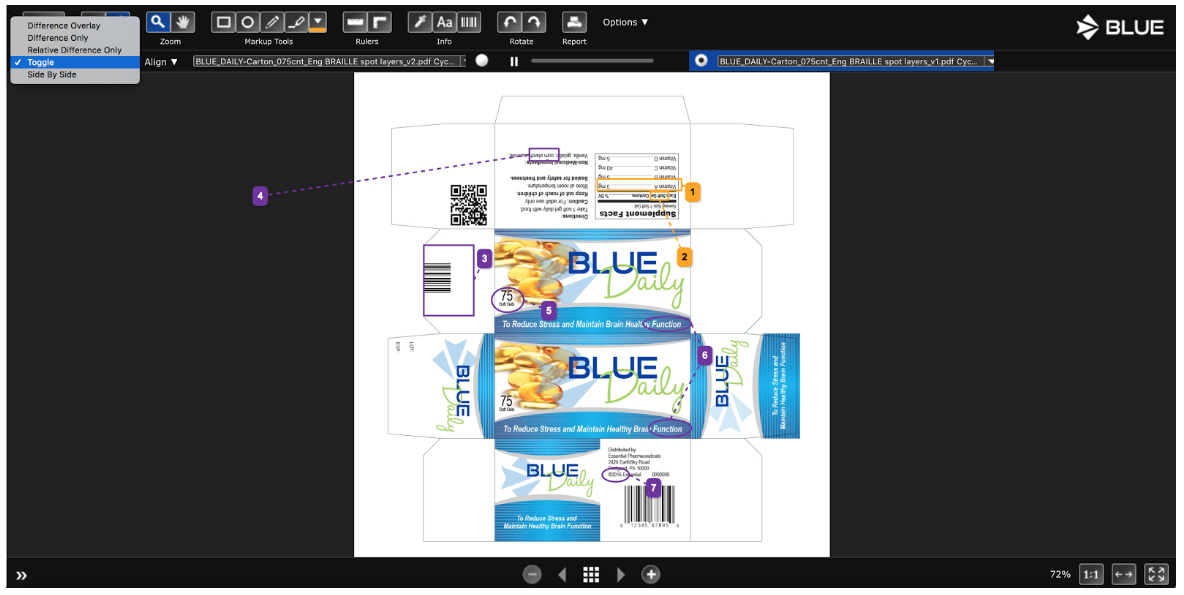
When paused, adjust the transparency slider or change the active file. Start the toggle again using the Play button.
Side By Side
See both cycles next to each other in side by side view. Use the active file toggle to view annotations and approvals for that cycle. Zoom and pan both pages at the same time for easy side by side compare to visually inspect cycles next to each other. Click the Lock button to unlock the views, allowing you to zoom and pan each page separately.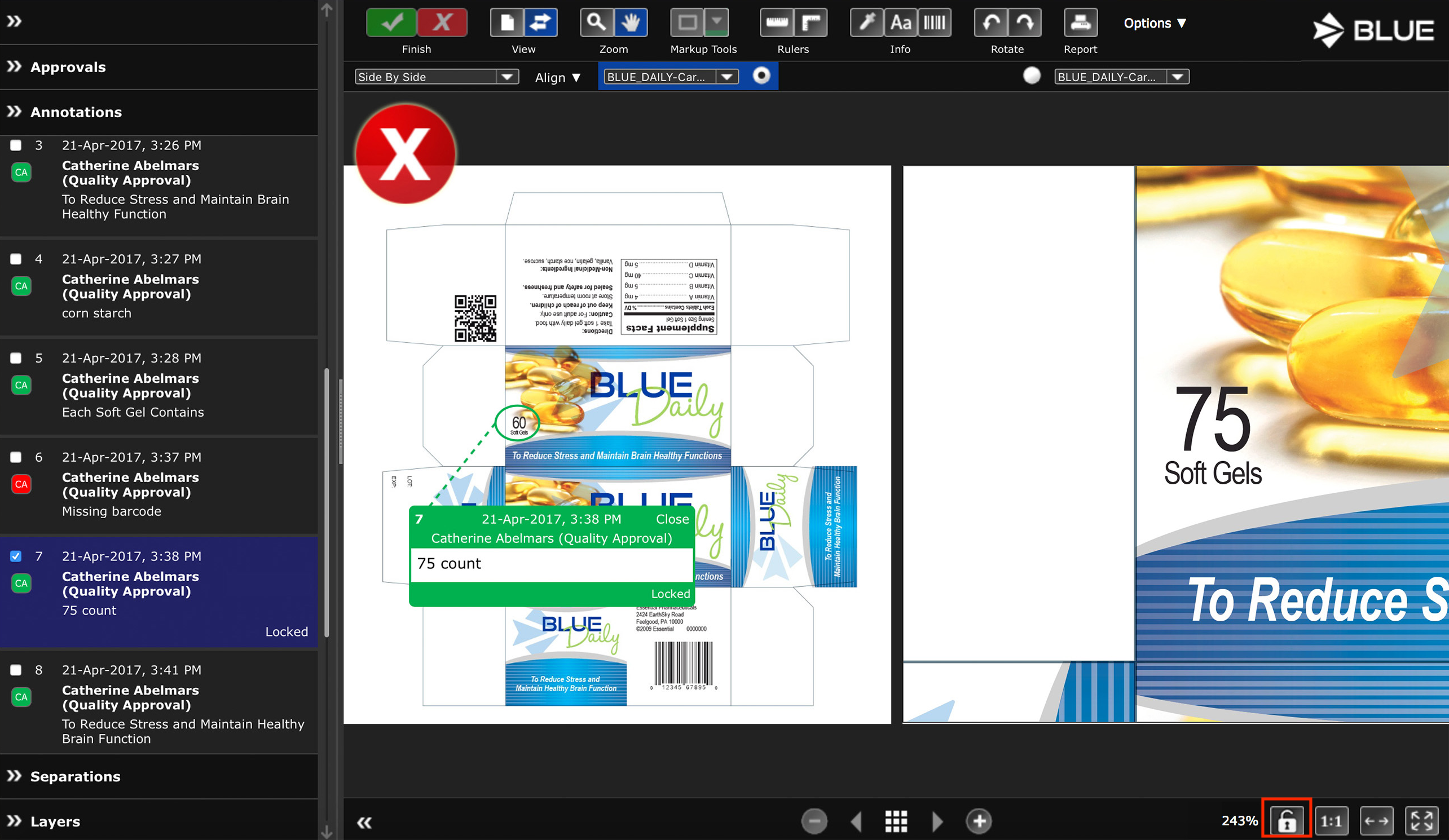
For more information on comparison-related topics, visit these links…
To learn about comparing files across sub-processes, see Cross Sub-Process Compare.
To view the proofing guide, click on the BLUE Enterprise Proofing Guide.
To learn more about the licensed text compare module, click on the BLUE Text Compare Guide.