Setting up tasks in process templates
Each task node used in the process template has different settings to administer the functionality needed to execute the task once it is used in a project. The settings drive the behavior for each task and may vary from type to type. See process templates for information on how templates are set up.
What are task nodes?
The process template is created by selecting one or more task nodes, including tasks, milestones, and decisions to create a workflow template that will meet specific business needs. For example, to create a template that contains a review cycle, you would include tasks for Upload File for Approval, Review, and Approval. Projects created from these templates, will always contain the same tasks used to create the template.
The following lists and describes the task nodes available to create a process template.
Standard Task
These are tasks you accomplish and complete outside of BLUE. Examples would be the project kickoff meeting, calling a supplier, or printing a file. Standard tasks also support automation capability, which executes a script when a task performer tries to complete a data entry Standard task. The script validates the data and only allows the task to complete if the validation is successful.
To set up a Standard task, enter the desired information for the following fields. All values are saved automatically and will be validated when the process template is saved. Below is a description for each field.
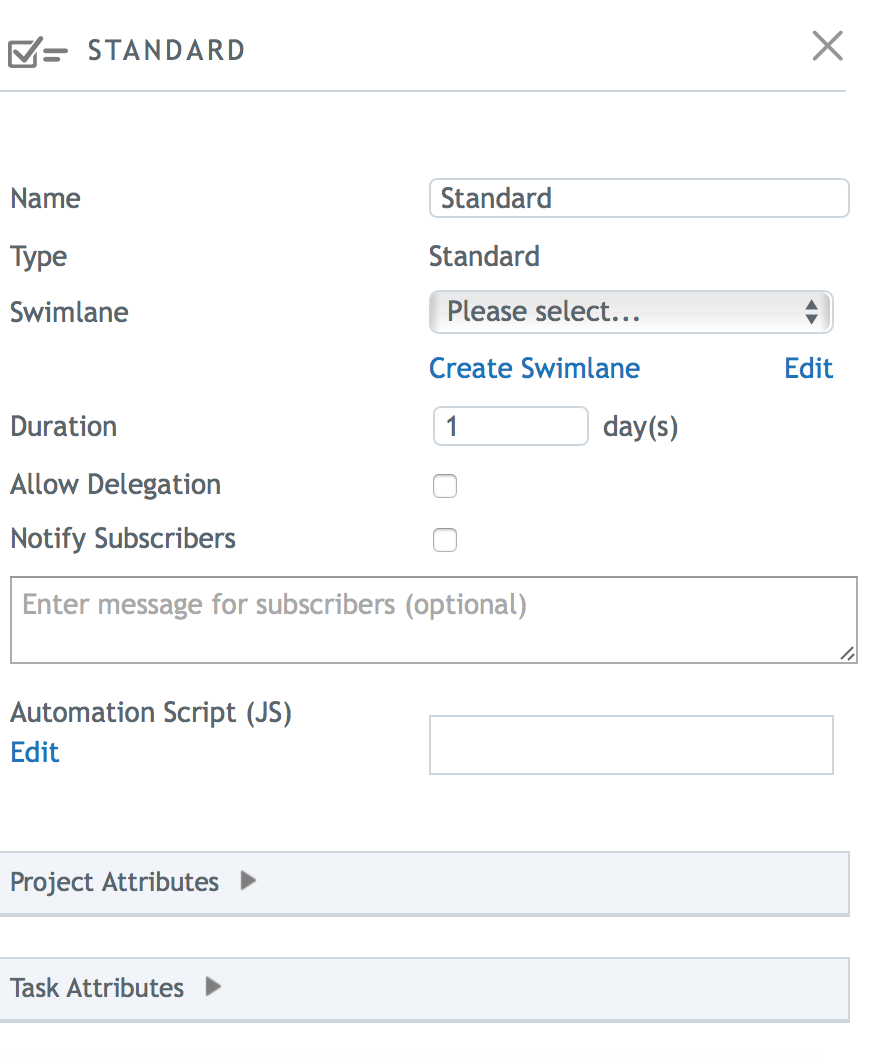
Name |
Enter a name that best describes the task and what it will be used for. |
Type |
This will describe the type of task being used. This is a system field and contains non-editable text. |
Swimlane |
This defines what group resource will be used for this task. You can create one or more swimlanes by clicking on “Create Swimlane” or use an existing one. When using a swimlane, you can define who the default user will be for that group. |
Duration |
Define the number of days designated for this type of task. These are used as a base duration, and can be adjusted in projects created from this template. |
Allow Delegation
|
If checked, allows task owners in the project to be able to delegate their tasks to other members of their group. |
Notify Subscribers
|
If checked, allows project owners to add subscribers to this task in the project, so on completion of the task, the recipients will be notified that it was completed. An optional message can be added to accompany the email notification. This message cannot be changed in the project. |
Automation Script (JS) |
Add a custom validation script that will be executed when the task performer tries to complete a data entry Standard task. The task will only be allowed to complete if the validation is successful. Otherwise, the task performer sees an error message indicating what the problem is. |
Project Attributes |
Lists the custom fields that were selected at the project level. These cannot be removed from a task, but you can select which ones to show or hide and which ones to allow the values to be edited. |
Task Attributes |
Lists the custom fields that were selected for this task. You can add custom fields, remove them, or sort them in the desired order. |
Upload Reference Files
This task requires you to upload a file to BLUE. This is usually a reference file or supporting document that does not need to be routed for review and approval. This file can be accessed by any user who is involved with the project. You may also attach existing files to a project as a reference.
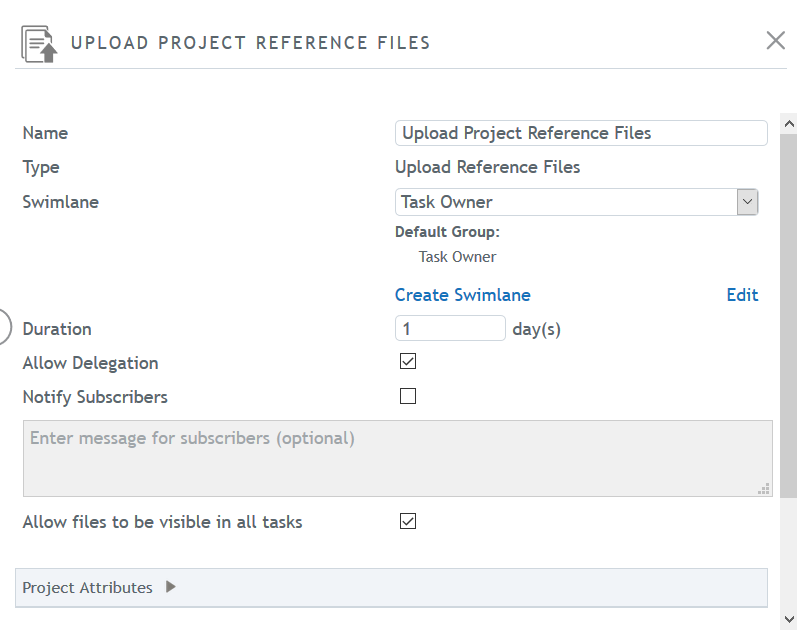
To set up an Upload Reference Files task, enter the desired information for the following fields. All values are saved automatically and will be validated when the process template is saved. Below is a description for each field.
Name |
Enter a name that best describes the task and what it will be used for. |
Type |
This will describe the type of task being used. This is a system field and contains non-editable text. |
Swimlane |
This defines what group resource will be used for this task. You can create one or more swimlanes by clicking on “Create Swimlane” or use an existing one. When using a swimlane, you can define who the default user will be for that group. |
Duration |
Define the number of days designated for this type of task. These are used as a base duration, and can be adjusted in projects created from this template. |
Allow Delegation |
If checked, allows task owners in the project to be able to delegate their tasks to other members of their group. |
Notify Subscribers |
If checked, allows project owners to add subscribers to this task in the project, so on completion of the task, the recipients will be notified that it was completed. An optional message can be added to accompany the email notification. This message cannot be changed in the project. |
Reference File Visibility |
The “Allow files to be visible in all tasks” checkbox allows administrators to decide if the files uploaded using this task will be allowed throughout the project or not. See Reference Files for rules and information on controlling who can view reference files. |
Project Attributes |
Lists the custom fields that were selected at the project level. These cannot be removed from a task, but you can select which ones to show or hide and which ones to allow the values to be edited. |
Task Attributes |
Lists the custom fields that were selected for this task. You can add custom fields, remove them, or sort them in the desired order. |
Automation
The Automation node is a task within the workflow that allows for custom JavaScript code to be executed when the task is active or becomes in progress. See Automation Node for specific information on setting up the automation scripts.
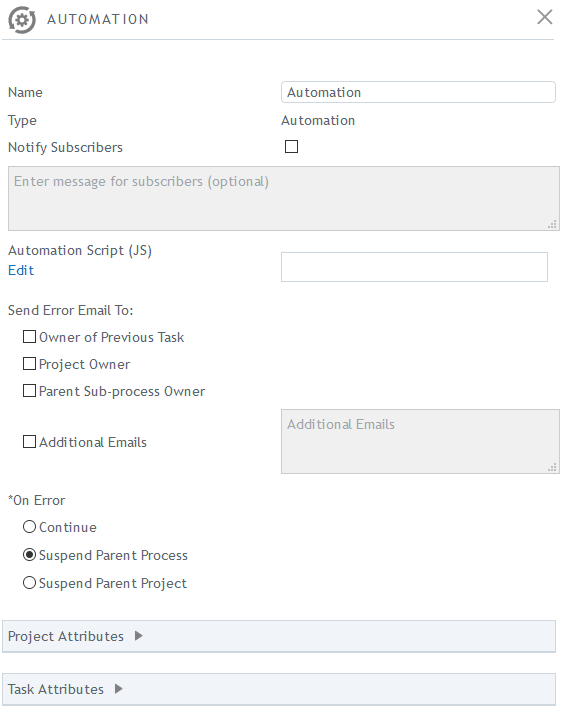
To set up an Automation task, enter the desired information for the following fields:
Name |
Enter a name that best describes the task and what it will be used for. The length of the automation task name must not exceed 255 characters. |
Type |
This will describe the type of task being used. This is a system field and contains non-editable text. |
Notify Subscribers
|
If checked, allows project owners to add subscribers to this task in the project, so on completion of the task, the recipients will be notified that it was completed. An optional message can be added to accompany the email notification. This message cannot be changed in the project. |
Automation Script
|
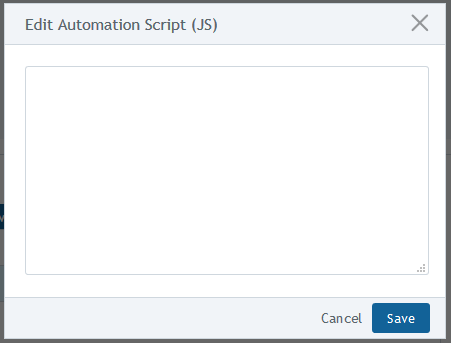
Editing this field allows the user to add in custom script to have the system execute a set of commands when the automation task is in progress. |
Send Error Email To
|
In this section, you can define who will get email notifications when the automation task has been executed and errors occur. |
On Error |
This section, you can choose what the system should do in the workflow if the automation task fails to execute, or an error occurs. |
Project Attributes |
Lists the custom fields that were selected at the project level. Here you can select which ones to show or hide on this task. |
Task Attributes |
Lists the custom fields that were selected at the task level. You can add custom fields to be used for the selected task. |
System Decision
The System Decision node allows you to skip a task or sub-process within the workflow by using expressions to determine the transition (True or False) to follow. See System Decision node for specific information on setting up the decision expressions.
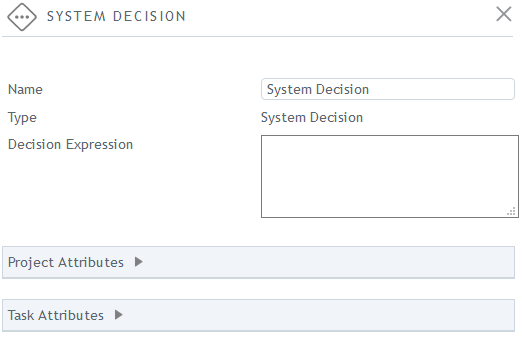
To set up a system decision, enter the desired information for the following fields:
Name |
Enter a name that best describes the task and what it will be used for. |
Type |
This will describe the type of task being used. This is a system field and contains non-editable text. |
Decision Expression
|
Editing this field allows the user to add in custom script to have the system execute a set of commands when the automation task is in progress. See System Decision node. |
Project Attributes |
Lists the custom fields that were selected at the project level. Here you can select which ones to show or hide on this task. |
Task Attributes |
Lists the custom fields that were selected at the task level. You can add custom fields to be used for the selected task. |
Milestone
These are markers for milestone events in the project. Milestones can be placed at any level of the project schedule. These tasks do not have task owners and are reached automatically by the workflow’s progression.
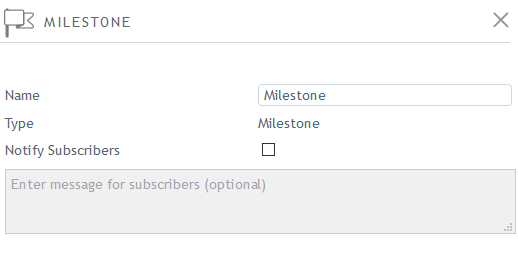
To set up a milestone, enter the desired information for the following fields:
Name |
Enter a name that best describes the task and what it will be used for. |
Type |
This will describe the type of task being used. This is a system field and contains non-editable text. |
Notify Subscribers
|
If checked, allows project owners to add subscribers to this task in the project, so on completion of the task, the recipients will be notified that it was completed. An optional message can be added to accompany the email notification. This message cannot be changed in the project. |
Project Attributes |
Lists the custom fields that were selected at the project level. These cannot be removed from a task, but you can select which ones to show or hide and which ones to allow the values to be edited. |
Task Attributes |
Lists the custom fields that were selected for this task. You can add custom fields, remove them, or sort them in the desired order. |
Complete Form
Forms provide a way for users to enter and view custom fields in a format that closely resembles the order and arrangement of data in legacy systems or physical paper forms. A form may be configured as a simple data entry task, or it may be configured to save the form as a reference file or as approval candidate within a workflow. See Forms for more information.
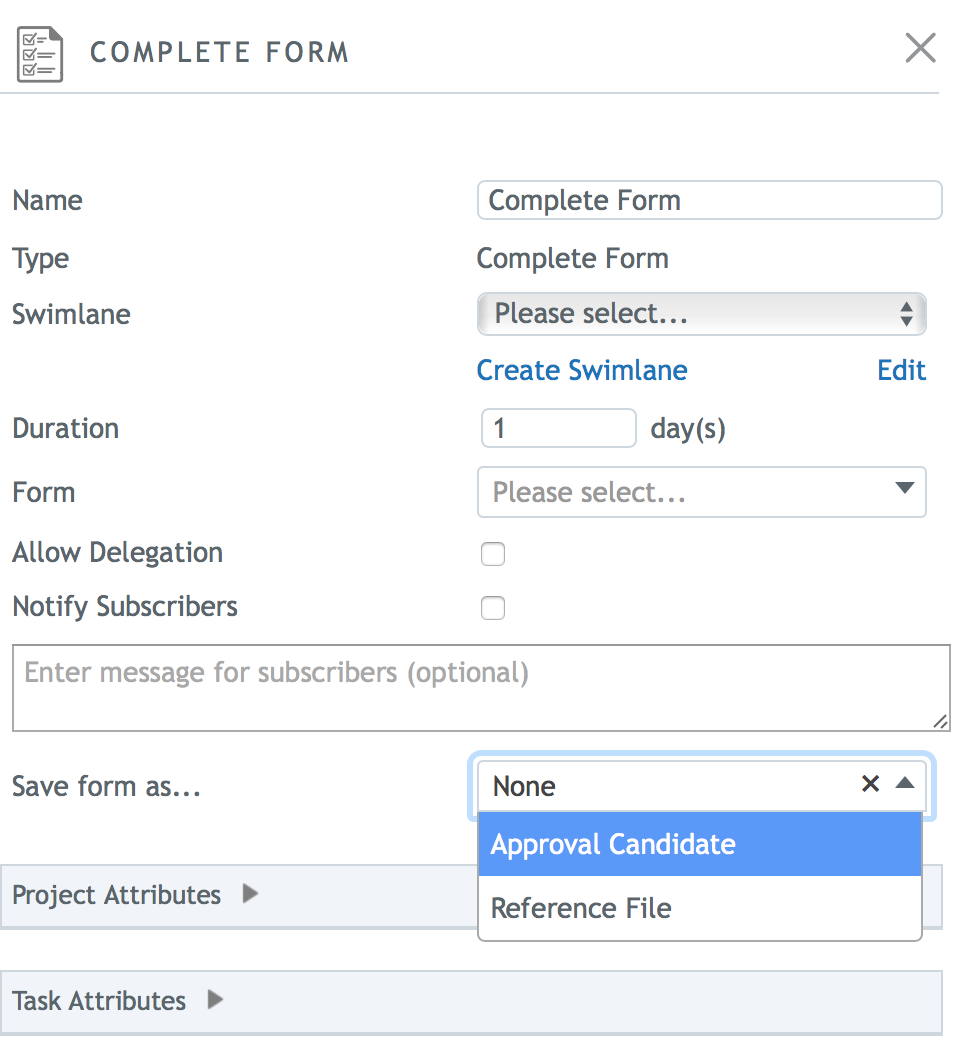
To set up a complete form task, enter the desired information for the following fields:
Name |
Enter a name that best describes the task and what it will be used for. |
Type |
This will describe the type of task being used. This is a system field and contains non-editable text. |
Swimlane |
This defines what group resource will be used for this task. You can create one or more swimlanes by clicking on “Create Swimlane” or use an existing one. When using a swimlane, you can define who the default user will be for that group. |
Duration |
Define the number of days designated for this type of task. These are used as a base duration, and can be adjusted in projects created from this template. |
Form |
Select an existing form to use for this task. Forms are created in Form Administration. See Forms for more information. |
Allow Delegation
|
If checked, allows task owners in the project to be able to delegate their tasks to other members of their group. |
Notify Subscribers
|
If checked, allows project owners to add subscribers to this task in the project, so on completion of the task, the recipients will be notified that it was completed. An optional message can be added to accompany the email notification. This message cannot be changed in the project. |
Save form as… |
Select an option for the completed form to be saved in the project as the approval candidate or a reference file.– Save form as reference file: choose the File Type and status for the Uploaded state.– Save form as approval candidate: choose the File Type, and statuses for the Approved, Rejected, Terminated, and Submitted states, and enter the Approval Candidate Id.Choose None if this will just be a data entry form task. |
Project Attributes |
Lists the custom fields that were selected at the project level. These cannot be removed from a task, but you can select which ones to show or hide and which ones to allow the values to be edited. |
Task Attributes |
Lists the custom fields that were selected for this task. You can add custom fields, remove them, or sort them in the desired order. |
Select Base Artwork from Library
This task allows a user to select one file from the library to use as a base artwork file for a new file that will be routed for approval. Depending on the template settings for this task, the user attaching the base artwork may be able to make annotations to indicate what changes are needed for the new artwork file. See Tasks for more information on executing a Select Base Artwork from Library task.
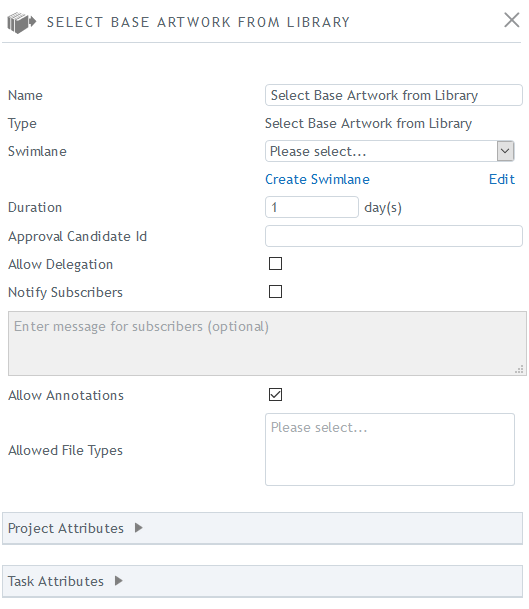
To set up a Select Base Artwork from Library task, enter the desired information for the following fields:
Name |
Enter a name that best describes the task and what it will be used for. |
Type |
This will describe the type of task being used. This is a system field and contains non-editable text. |
Swimlane |
This defines what group resource will be used for this task. You can create one or more swimlanes by clicking on “Create Swimlane” or use an existing one. When using a swimlane, you can define who the default user will be for that group. |
Duration |
Define the number of days designated for this type of task. These are used as a base duration, and can be adjusted in projects created from this template. |
Approval Candidate ID |
Enter a unique ID for the approval process of the approval file. The same ID must be used in all tasks of the same approval process. |
Allow Delegation |
If checked, allows task owners in the project to be able to delegate their tasks to other members of their group. |
Notify Subscribers |
If checked, allows project owners to add subscribers to this task in the project, so on completion of the task, the recipients will be notified that it was completed. An optional message can be added to accompany the email notification. This message cannot be changed in the project. |
Allow Annotations |
If checked, the task owner will be able to add annotations to the base artwork file. |
Allowed File Types |
Select one or more system file types that can be used to search for and select files from the library. |
Project Attributes |
Lists the custom fields that were selected at the project level. These cannot be removed from a task, but you can select which ones to show or hide and which ones to allow the values to be edited. |
Task Attributes |
Lists the custom fields that were selected for this task. You can add custom fields, remove them, or sort them in the desired order. |
Upload File for Approval
This task requires you to upload a file for review and / or approval. After uploading a file, the submitter marks the task as complete in BLUE.
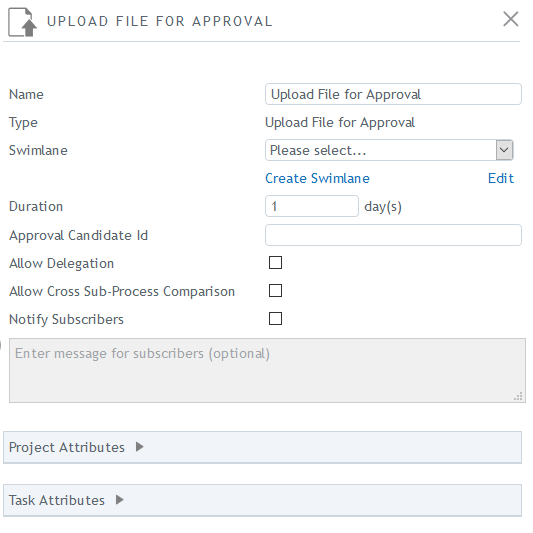
To set up an Upload File for Approval task, enter the desired information for the following fields:
Name |
Enter a name that best describes the task and what it will be used for. |
Type |
This will describe the type of task being used. This is a system field and contains non-editable text. |
Swimlane |
This defines what group resource will be used for this task. You can create one or more swimlanes by clicking on “Create Swimlane” or use an existing one. When using a swimlane, you can define who the default user will be for that group. |
Duration |
Define the number of days designated for this type of task. These are used as a base duration, and can be adjusted in projects created from this template. |
Approval Candidate ID |
Enter a unique ID for the approval process of the approval file. The same ID must be used in all tasks of the same approval process. |
Allow Delegation |
If checked, allows task owners in the project to be able to delegate their tasks to other members of their group. |
Allow Sub-Process Comparison
|
If checked, task owners who are uploading or reviewing the approval file can compare it with approval files from other sub-processes with same approval candidate ID. |
Notify Subscribers |
If checked, allows project owners to add subscribers to this task in the project, so on completion of the task, the recipients will be notified that it was completed. An optional message can be added to accompany the email notification. This message cannot be changed in the project. |
Project Attributes |
Lists the custom fields that were selected at the project level. These cannot be removed from a task, but you can select which ones to show or hide and which ones to allow the values to be edited. |
Task Attributes |
Lists the custom fields that were selected for this task. You can add custom fields, remove them, or sort them in the desired order. |
Review
This task displays the file that was uploaded for review. Reviewers add comments and mark the task as complete in online proofing.
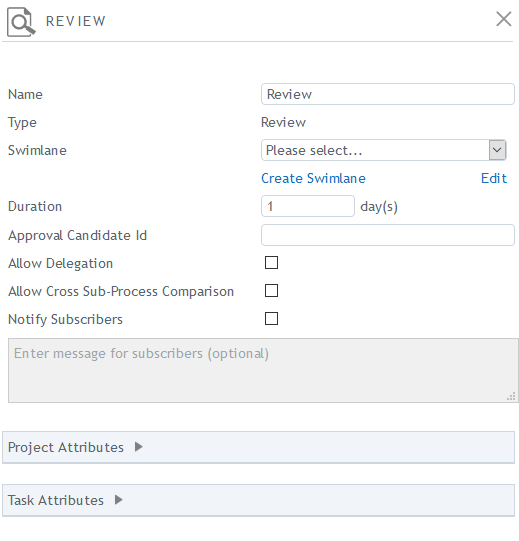
To set up a review task, enter the desired information for the following fields:
Name |
Enter a name that best describes the task and what it will be used for. |
Type |
This will describe the type of task being used. This is a system field and contains non-editable text. |
Swimlane |
This defines what group resource will be used for this task. You can create one or more swimlanes by clicking on “Create Swimlane” or use an existing one. When using a swimlane, you can define who the default user will be for that group. |
Duration |
Define the number of days designated for this type of task. These are used as a base duration, and can be adjusted in projects created from this template. |
Approval Candidate ID |
Enter a unique ID for the approval process of the approval file. The same ID must be used in all tasks of the same approval process. |
Allow Delegation |
If checked, allows task owners in the project to be able to delegate their tasks to other members of their group. |
Allow Cross Sub-Process Comparison |
If checked, task owners who are uploading or reviewing the approval file can compare it with approval files from other sub-processes with same approval candidate ID. |
Notify Subscribers |
If checked, allows project owners to add subscribers to this task in the project, so on completion of the task, the recipients will be notified that it was completed. An optional message can be added to accompany the email notification. This message cannot be changed in the project. |
Project Attributes |
Lists the custom fields that were selected at the project level. These cannot be removed from a task, but you can select which ones to show or hide and which ones to allow the values to be edited. |
Task Attributes |
Lists the custom fields that were selected for this task. You can add custom fields, remove them, or sort them in the desired order. |
Auto Transfer to Library
Having an Auto Transfer to Library node in a process template means that when projects are executed with this task in its workflow, the file that is approved in the process will be automatically transferred to the asset library. This will ensure that the approved file is stored in the library and is available to users who will need to access the file. See Transfer to Library Tasks for more information.
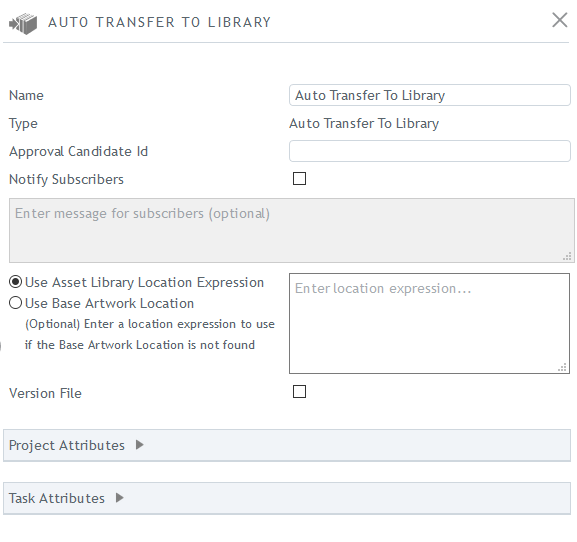
To set up an Auto Transfer to Library task, enter the desired information for the following fields:
Name |
Enter a name that best describes the task and what it will be used for. |
Type |
This will describe the type of task being used. This is a system field and contains non-editable text. |
Approval Candidate ID |
Enter a unique ID for the approval process of the approval file. The same ID must be used in all tasks of the same approval process. |
Notify Subscribers
|
If checked, allows project owners to add subscribers to this task in the project, so on completion of the task, the recipients will be notified that it was completed. An optional message can be added to accompany the email notification. This message cannot be changed in the project. |
Asset Library Location Expression |
The expression required to indicate an asset library location is based on Velocity Template Language. Entering an expression here will indicate to the system where to transfer a file once it is approved. See Automatic Transfer to Library for examples of expressions. |
Base Artwork Location |
The base artwork location option works in conjunction with the Select base artwork task and the auto sub-process generator. If the workflow contains a base artwork file, then the Auto Transfer to Library task will automatically transfer the newly approved file to the location of the selected base artwork. |
Version File |
By checking the version file checkbox. This will ensure that on completion of the approval process, when the approval file is transferred to the indicated location, if a file of the same name is found, then the new file will become the next numerical version |
Project Attributes |
Lists the custom fields that were selected at the project level. These cannot be removed from a task, but you can select which ones to show or hide and which ones to allow the values to be edited. |
Task Attributes |
Lists the custom fields that were selected for this task. You can add custom fields, remove them, or sort them in the desired order. |
Manual Transfer to Library
Having a Manual Transfer to Library node in a process template means that when projects are executed with this task in its workflow, a task owner can choose where the approved file will be stored in the asset library or if it will be versioned. See Transfer to Library Tasks for more information.
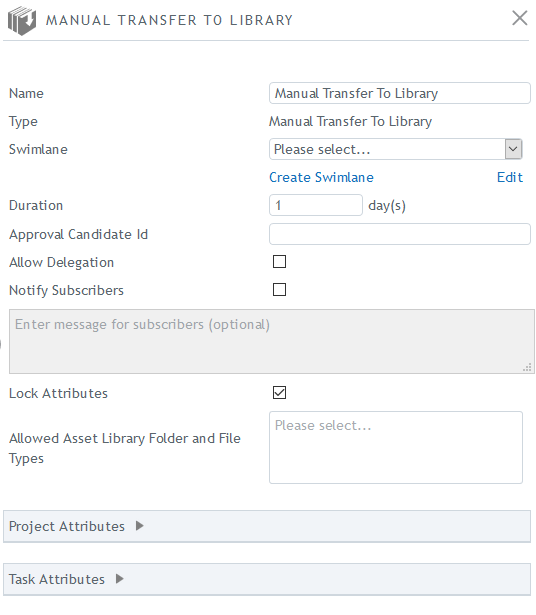
To set up a Manual Transfer to Library task, enter the desired information for the following fields:
Name |
Enter a name that best describes the task and what it will be used for. |
Type |
This will describe the type of task being used. This is a system field and contains non-editable text. |
Swimlane |
This defines what group resource will be used for this task. You can create one or more swimlanes by clicking on “Create Swimlane” or use an existing one. When using a swimlane, you can define who the default user will be for that group. |
Duration |
Define the number of days designated for this type of task. These are used as a base duration, and can be adjusted in projects created from this template. |
Approval Candidate ID |
Enter a unique ID for the approval process of the approval file. The same ID must be used in all tasks of the same approval process. |
Allow Delegation |
If checked, allows task owners in the project to be able to delegate their tasks to other members of their group. |
Notify Subscribers
|
If checked, allows project owners to add subscribers to this task in the project, so on completion of the task, the recipients will be notified that it was completed. An optional message can be added to accompany the email notification. This message cannot be changed in the project. |
Lock Attributes |
If checked, the task owner will not be able to change the attributes of the file type for the transferred file. |
Allowed Asset Library Folder and File types |
Select one or more system folder or file types that can be used to search for and select folders and files from the library. |
Project Attributes |
Lists the custom fields that were selected at the project level. These cannot be removed from a task, but you can select which ones to show or hide and which ones to allow the values to be edited. |
Task Attributes |
Lists the custom fields that were selected for this task. You can add custom fields, remove them, or sort them in the desired order. |
Approval Decision
The Approval Decision node will progress the workflow, depending on whether an approval candidate was approved or rejected. The node recognizes that if the approval file is rejected, it will return to the Upload file for Approval task, and if it is approved, the workflow will progress to the next sequential task.
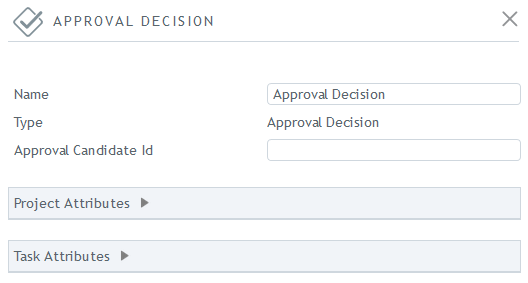
To set up an Approval Decision node, enter the desired information for the following fields:
Name |
Enter a name that best describes the task and what it will be used for. |
Type |
This will describe the type of task being used. This is a system field and contains non-editable text. |
Approval Candidate ID |
Enter a unique ID for the approval process of the approval file. The same ID must be used in all tasks of the same approval process. |
Project Attributes |
Lists the custom fields that were selected at the project level. These cannot be removed from a task, but you can select which ones to show or hide and which ones to allow the values to be edited. |
Task Attributes |
Lists the custom fields that were selected for this task. You can add custom fields, remove them, or sort them in the desired order. |
Guardrails
Decision Nodes
When using two or more decision nodes in your template, including a system decision or approval decision, it is important that these do not overlap each other. Each decision node must point back directly to another node, such as the Upload for Approval node, without it crossing the other decision node. Doing so, may cause the template setup to break, remove transitions, or not validate and save.
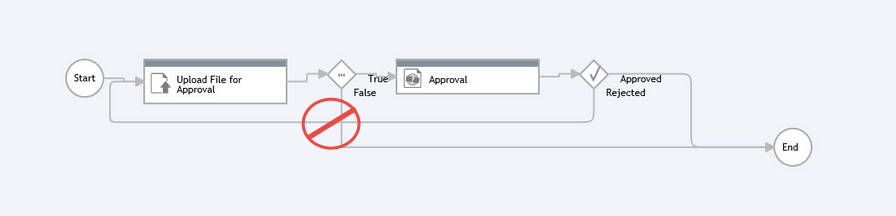
If the template is saved with decision nodes overlapping, but with errors, this will cause projects that are created from that template to not progress forward. If you encounter a project created from a template like this, contact your administrator.