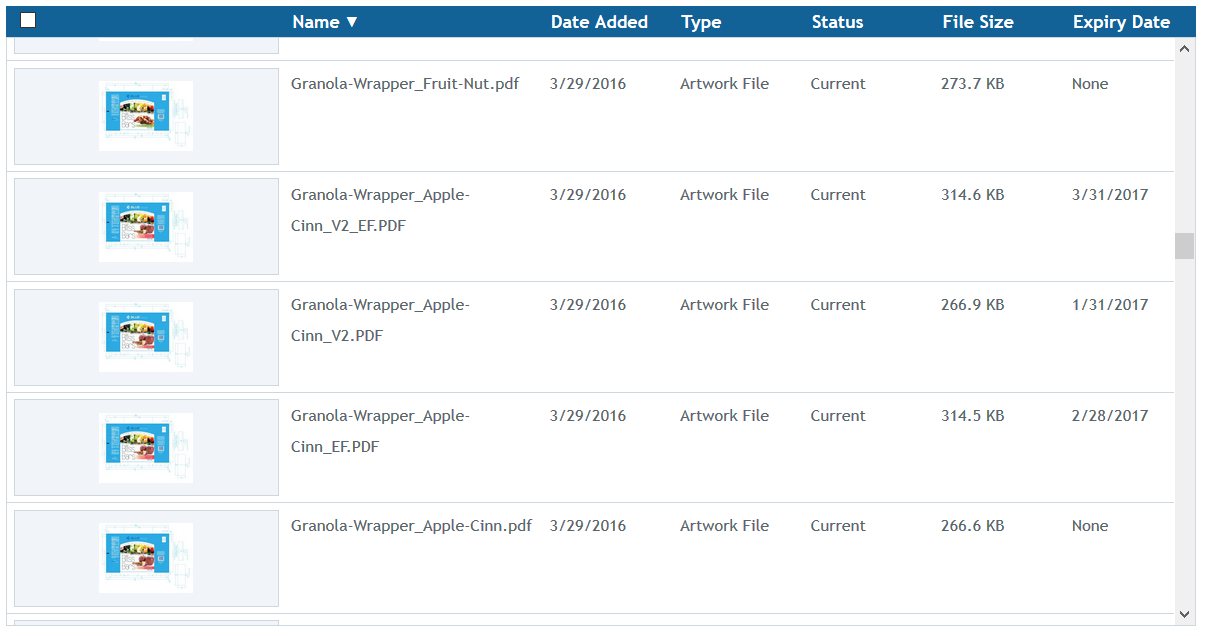
What is asset expiration?
BLUE allows you to set an expiration date and an expiration status when uploading or editing a file to have it expire automatically. By setting an expiration date, BLUE can automatically archive assets without manual interaction to ensure that only active assets are visible in your asset library.
BLUE also allows you to modify or remove the expiration date and expiration status when editing a file’s attributes. Once the asset expiry date is met and its status is updated, the expiry date and the expiry status of that asset are locked and cannot be modified.
Who can set expiry dates and statuses?
Any user who has upload asset permissions will have access to set the expiry date and the expiry status on those assets. Furthermore, any user with edit asset permissions will have access to modify or remove the expiry date and the expiry status on those assets.
How do I set up automatic expiration?
On upload of an asset
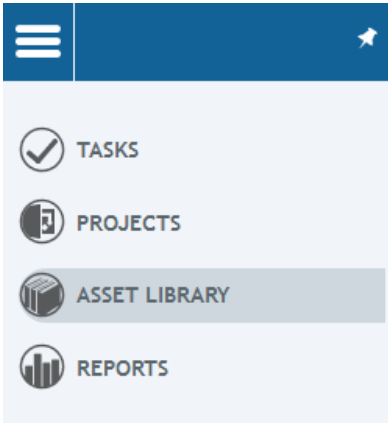
From the left navigation bar select “Asset Library.”
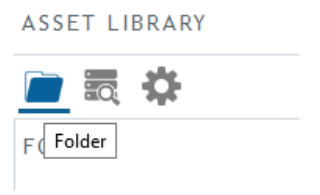
Click on the folder icon to see the asset library hierarchy.
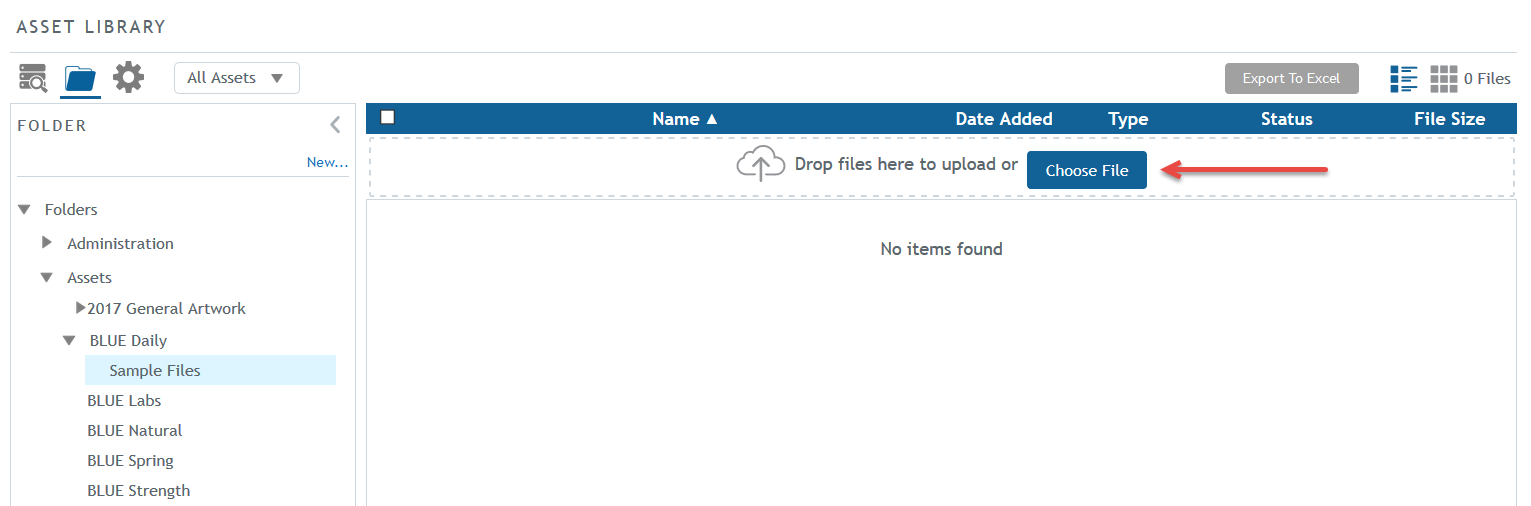
Navigate to the folder you would like to upload your asset to and then either drag and drop your file to the main window or click on Choose File to select the file you would like to upload.
On the upload form, locate the Expiry Date and the Expiry Status fields and set them.
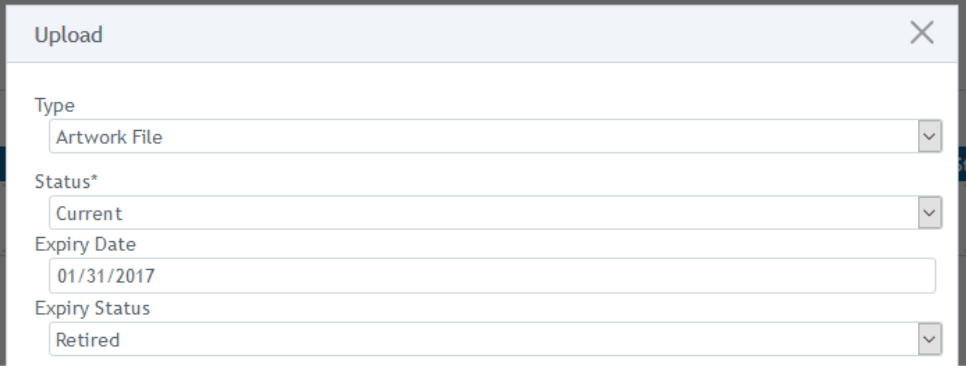
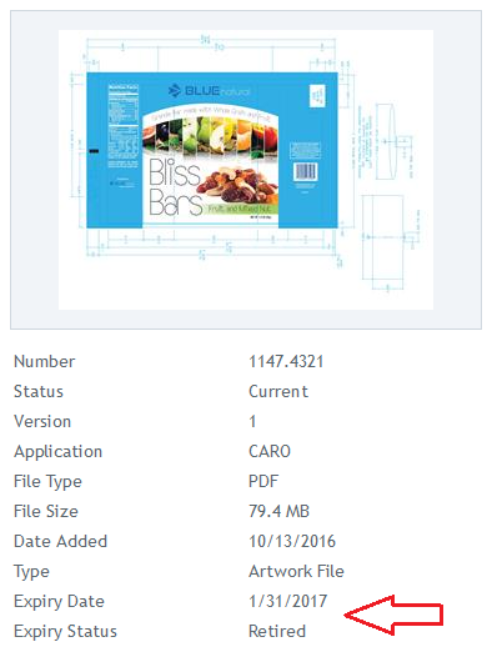
Complete entering the values into the form and click upload. Once your file is uploaded, you will be able to see the details on the right sidebar when selecting your asset.
On edit of an asset
From the left navigation bar select “Asset Library”
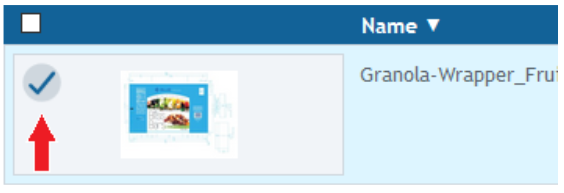
Perform a search or filter to find the asset you would like to edit then select it.
Asset details will show on the right sidebar. Click on the edit icon  to edit the asset’s details.
On edit asset, locate the Expiry Date and Expiry Status fields and edit them as needed.
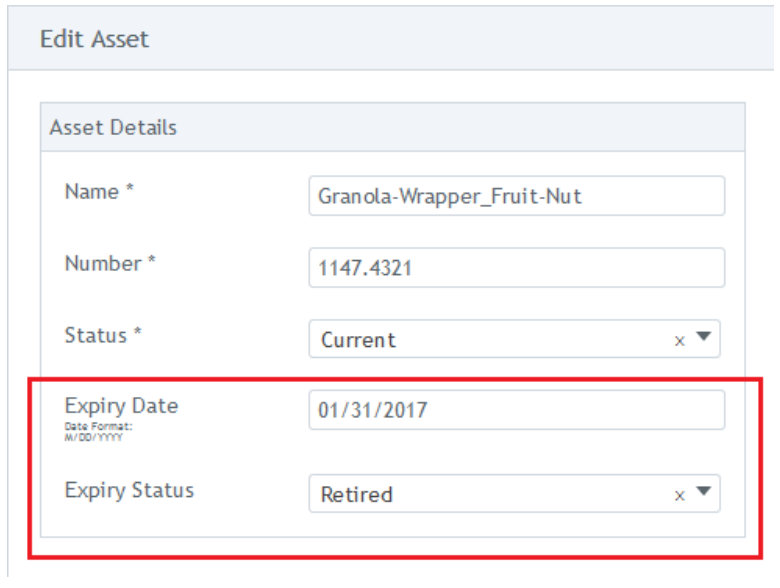
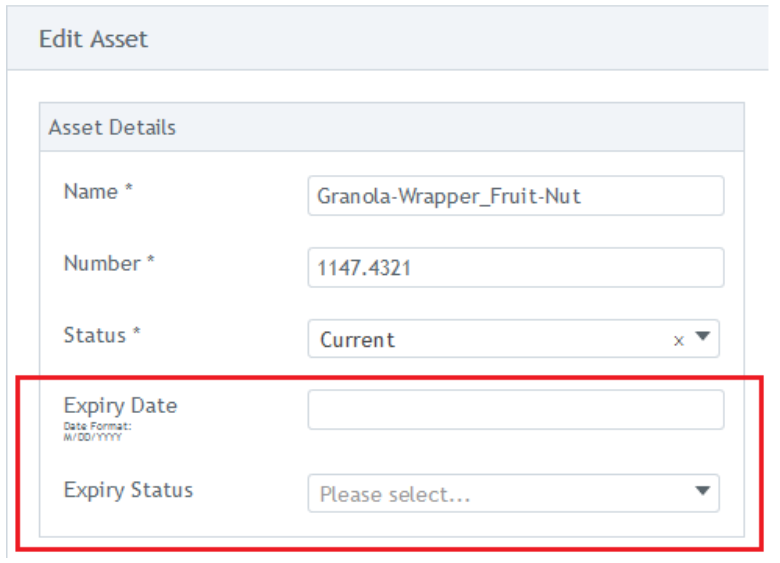
If you would like to remove the currently set expiry date and expiry status then clear any values in the fields.
Click on Save Asset to save your changes.
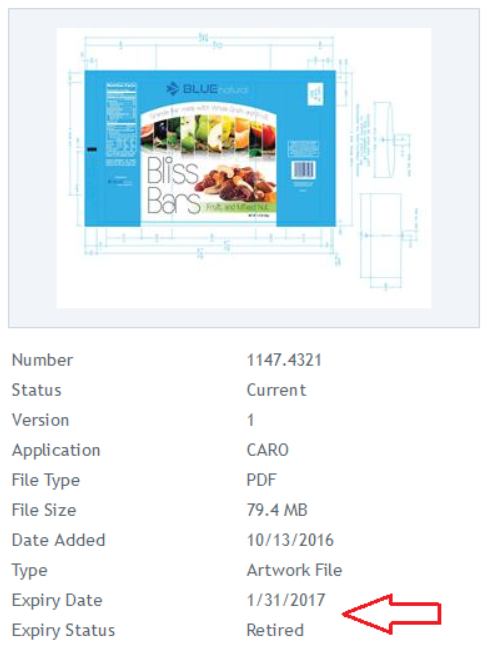
Your changes will be visible on the asset details in the right panel. If you have removed the expiry date and the expiry status, then those fields will be removed from the asset details view as well.
An “Expiry Date” column will appear on the asset library list view. Setting and updating the expiry date and the expiry status are audited in BLUE. Should the system fail to change the status of an asset on its expiry date, the system administrator will be automatically notified by email and the error is logged.