Auto project naming
BLUE allows you to generate unique project names automatically based on several variables, including custom field values defined during project creation or project template ID. The ability to have the system automatically create project names is helpful to enforce certain patterns for project names that will help identify projects easier using specific values in their names.
There are several variables that can be used to generate a project name. Once created, the project name will not be directly editable; however, it can be changed by updating field value assignments when a project is in draft or suspended state. A maximum length of 255 characters is allowed for the project name.
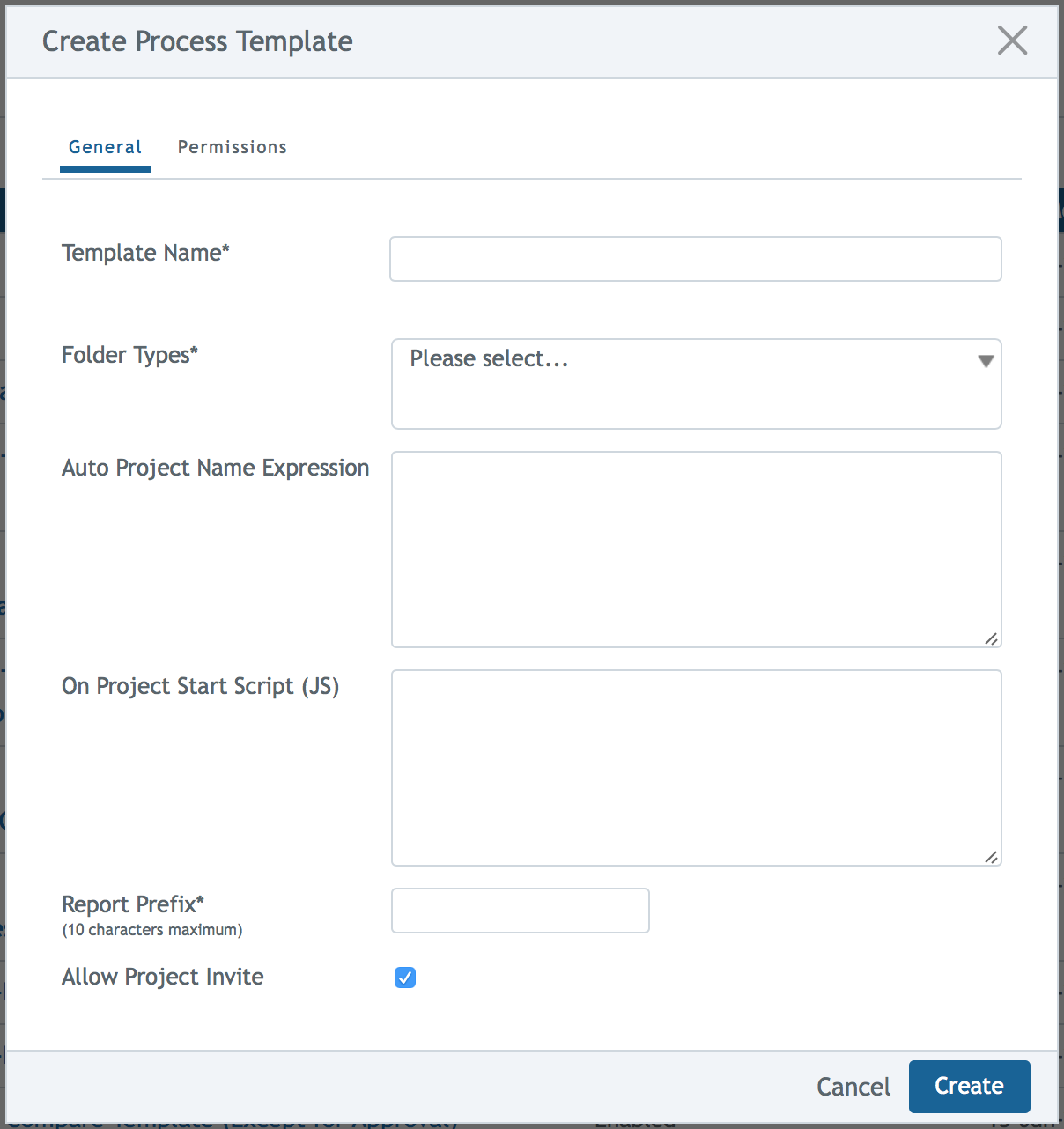
On “Create Process Template,” the option to enter an auto project name expression is available. It is not required, but once an expression is entered, every project created from this template will have its name automatically generated by the system, based on the expression entered.
What types of custom fields can be used for auto project naming?
Automatic project naming supports using up to eight String type custom fields which can be used in combination to generate a project name. String custom fields can be constrained, single or multi select, or free form text. Other custom field types are not supported with automatic project naming.
Who can use auto project naming?
Administrators. The configuration of expressions which will make up a project name is defined on the process templates by an administrator. These templates are then used by project creators when creating a new project. The values assigned to the defined variables will systematically generate the project name.
Note: Administrators must confirm that the used expression will ensure uniqueness, as project names must be unique.
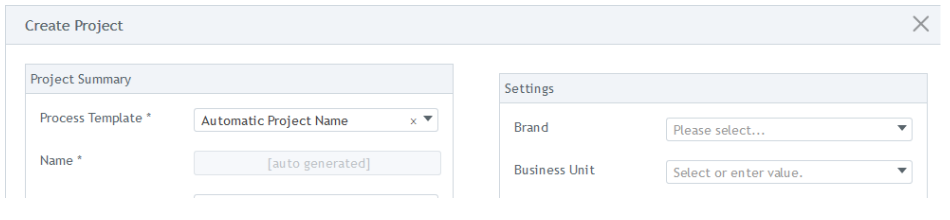
Project creators. When selecting a template to create a new project, project creators will be able to see that the template has a defined expression for the project name. This name will display as read-only text, “auto-generated,” and cannot be modified when creating the project.
How do I set up an automatic project name?
As an administrator, you will be able to add an expression for the project name when creating a process template. See process templates for more information on creating a process template. On the “Create Process Template” screen, locate the “Auto Project Name Expression” field and enter the custom field expressions that will generate the project name.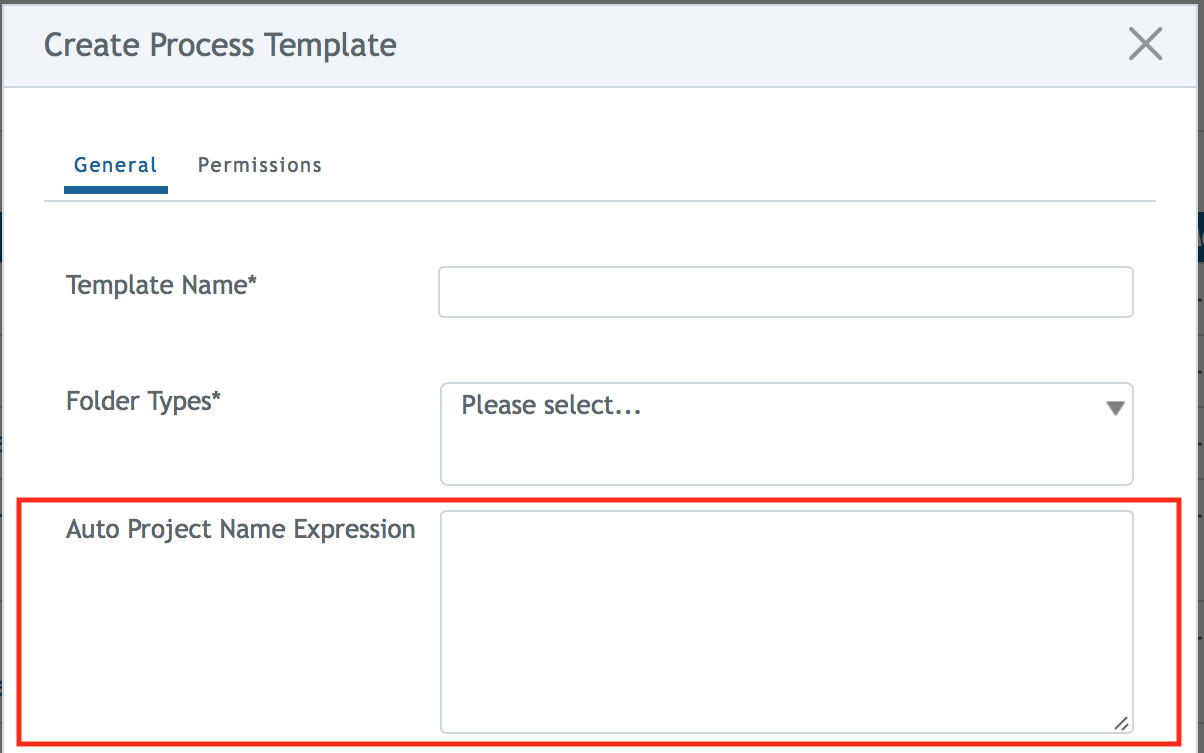
Expressions
The expressions required to indicate an auto-generated project name is based on Velocity Template Language (VTL). The following expressions and formats are allowed for project naming:
Variable |
Description |
${projectTemplate.id} |
Captures the ID of the template used to create the project |
${projectTemplate.version} |
Captures the version of the template used to create the project |
${numberOfProjectsFromTemplate} |
Captures the numeric representation of the number of projects created from the template version.Notes and limitations:
|
${project.number} |
Captures the unique numerical identifier of the project |
${cfs.get(‘custom_field_ID’)} |
Captures the value for the selected custom field ID. Includes any string custom field (single value, multi select, or manual select). Custom fields must be homed at the project level and values must be entered for them to appear within the name. |
free text |
Use any string of text/words/spaces to be included in every instance that the expression is generated. Plain text to be used as separator, prefix, or suffix |
${project.created} |
Captures the date that the project was created. |
${projectTemplate.name} |
Captures the template name used to create the project |
Here is an example of how you can use a velocity expression for the auto project naming:
BLUE_${cfs.get(‘brand’)}_${cfs.get(‘product’)}_${project.created}_${projectTemplate.id}/${numberOfProjectsFromTemplate}
Note: Make sure the single quotes are the straight up-and-down ones ( ‘ ) and not the curvy ones (‘ and ’ ) which other programs (like Word) create. The expression will not work with the curvy single quotes.
Auto sub-process naming
Like auto project naming, sub-processes can also have an expression entered in the template to auto-generate their names. A maximum length of 255 characters is allowed for the sub-process name.
You can configure an expression for the name in the sub-process node in a template. It is not required, but once an expression is entered, every project created from this template will have its sub-process names automatically generated by the system, based on the expression entered.
Who can use auto sub-process naming?
Administrators. The configuration of expressions which will make up a sub-process name is defined on the process templates by an administrator. These templates are then used by project creators when creating a new project. The values assigned to the defined variables in the expression will systematically generate the sub-process names in the project.
Note: It is advised that administrators use an expression that will ensure uniqueness for each sub-process, but uniqueness is not required with sub-processes.
How do I set up automatic sub-process naming?
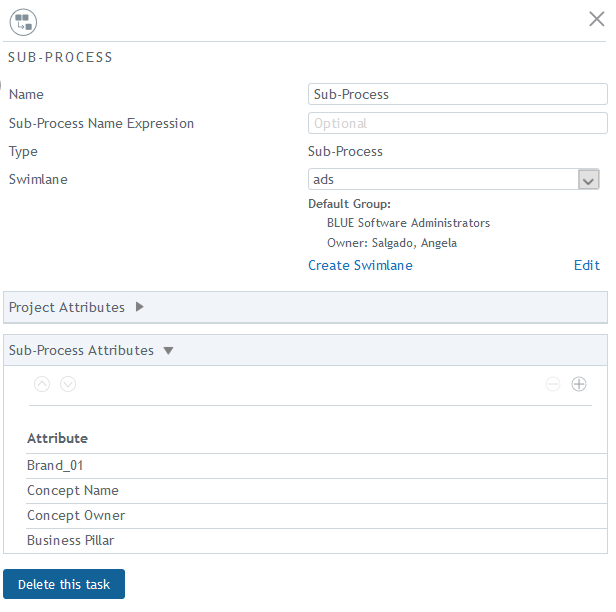
To enter an expression for a sub-process name, click on the details panel of a sub-process node in a process template. “Sub-Process Name Expression” is an optional field, and each sub-process can have a unique expression or the same one can be used. If the expression is based on custom fields, these must be homed at the sub-process level.

If no expression is entered, then the sub-process name will be the value that is in the “Name” field.
Expressions
The expressions required to indicate an auto-generated sub-process name is based on Velocity Template Language (VTL). The following expressions and formats are allowed for sub-process naming:
Variable |
Description |
${cfs.get(‘custom_field_ID’)} |
Captures the value for the selected custom field ID. Custom field must be homed at the sub-process level and values must be entered for them to appear within the name. The following are the allowed types of custom fields:
|
${libraryItem.name} |
Used with auto-generated sub-processes, this captures the name of the file (without its file extension) that was selected to create the project’s sub-processes. |
${subprocess.id} |
Captures the unique numerical identifier of the sub-process |
${subprocess.name} |
Captures the name defined in the process template for the sub-process |
free text |
Use any string of text/words/spaces to be included in every instance that the expression is generated. Plain text to be used as separator, prefix, or suffix |
Here is an example of how you can use a velocity expression for the auto sub-process naming:
Component_${cfs.get(‘brand’)}_${subprocess.id}_${cfs.get(‘product’)}_${cfs.get(‘date’)}
Note: Make sure the single quotes are the straight up-and-down ones ( ‘ ) and not the curvy ones (‘ and ’ ) which other programs (like Word) create. The expression will not work with the curvy single quotes.
Editing sub-process names in a project
Once a project has been created and there are sub-processes with auto-generated names, you will be able to modify them.
Duplicating a sub-process
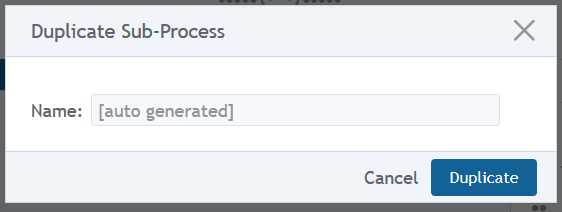
You can duplicate a sub-process that has an auto-generated name. The name field will be read-only and will always auto-generate the name. Duplicate sub-process names are allowed in a project when using the auto-generated naming expressions.
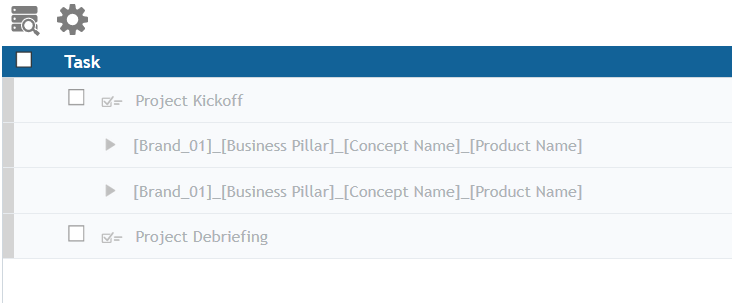
Sub-Process names without values
When the sub-process naming expressions contain values that have not yet been entered in the custom fields, the label of the custom fields will appear within [] brackets on the sub-process name.
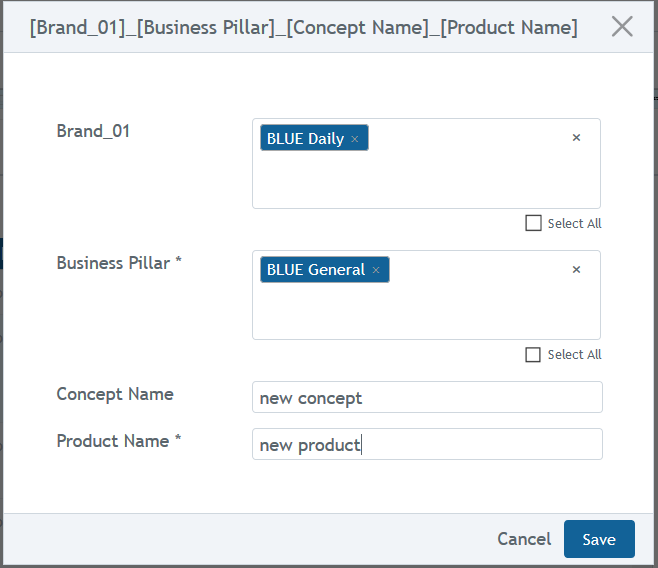
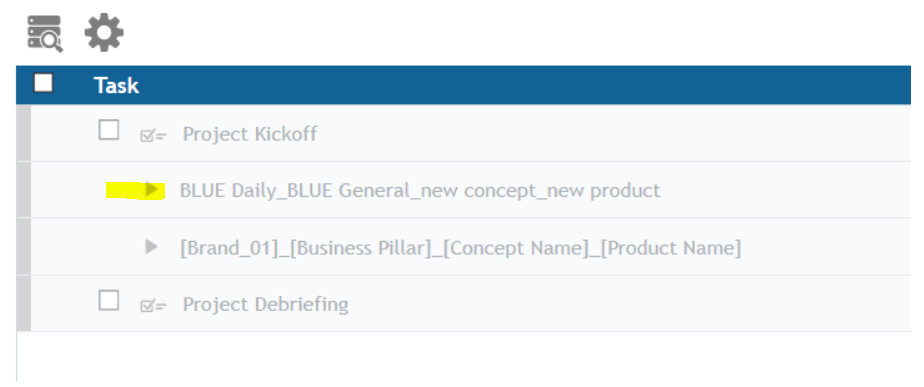
Sub-Process names with values
Once the values have been entered, the sub-process name will display the name with the values.
Manual change to an auto-generated name
As a sub-process owner, you may need to make a manual change to the sub-process name. On the Edit sub-process page, you can enter text in the Name field. The name will no longer be auto-generated and it will not follow the expression variables. So if changes are made to a custom field value used in the expression, the name will not change.
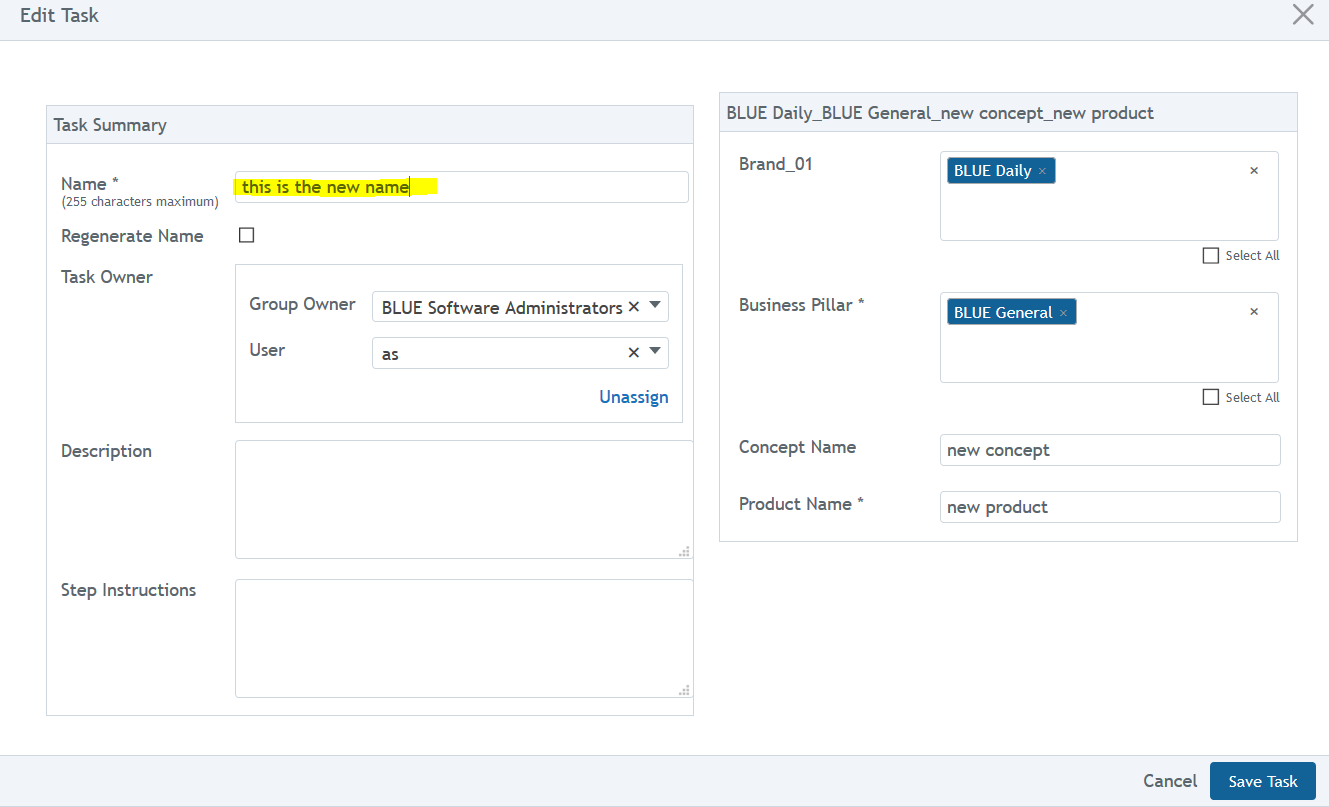
If you need to return to the original naming expression, check “Regenerate Name” and save the edits. This will reset the name to auto generate again.
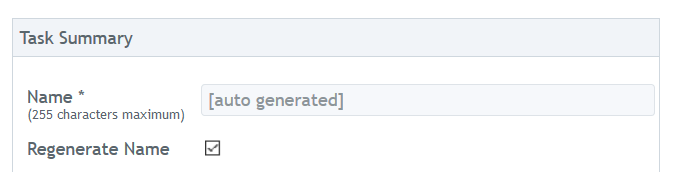
Note: Changes to the auto sub-process naming can only be made when the project is in Draft or Suspended states.