What is BLUE reporting?
The BLUE reporting module is being upgraded and updated using state-of-the-art technology provided by our partner Qlik. Leveraging Qlik Sense technology, users will have access to interactive reports and analytics ranging from business KPIs to system usage.
In the near term, users will notice a mix of ‘legacy’ and Qlik reports. As we migrate our legacy reports to Qlik Sense they will replace their legacy counterparts in the reports menu.
The screenshot below is an example of how to access reports from the Blue Menu. The reports called-out represent the standard set of Qlik reports available in most 5.3 installations.
Note: Report names and descriptions may be different in your system as they are configurable by the system administrator using the Advanced >> Functions feature.

Who can access reports?
Access to view individual reports is based on security privileges assigned to the group(s) of which the BLUE user is a member.
Configuring report access (administration)
Integration of Qlik Reports with BLUE is done using standard Blue ‘Functions’.
New and upgraded installations of BLUE typically contain the standard set of reports described in the next section. While the underlying functions are typically created by default, they are not assigned any default Group Privileges, so the they will not appear to BLUE users in the Reports Section until Group privileges are assigned for each report.
The screenshot below displays function details of the Active Task View Report – as seen in “Function Administration”.

1. Function Name
- Name of the Report that users see in the Reports Section of BLUE
- Configurable by Blue Administrator – no additional impact
2. URL
- Identifies the specific Qlik report to display
- DO NOT CHANGE the default value unless you have been trained in updating and publishing Qlik reports
- Sample value:
- legacy/exclude/qlik_view.jsp?name=Active Task View
- ‘Active Task View’ is the name of the Qlik Sheet to be displayed to the user
- Case / Space Sensitive
- legacy/exclude/qlik_view.jsp?name=Active Task View
3. Description
- Description that users see next to the Report Name
- Configurable by Blue Admin – no additional impact
4. Groups
- Select all Groups that are allowed to view this report
Who can modify or create reports?
Customizing out-of-the-box reports and creating new reports for your users is all possible using Qlik technology. Because this requires Qlik development knowledge as well as direct access to (and an understanding of) the underlying BLUE database, all customizations to reports are carried out by our BLUE Development Operations Team and/or Professional Services.
Please contact your BLUE Software representative for more information.
What reports are included?
- Active Projects
- Active Task View
- Completed Projects
- KPI by Cycle
- KPI Process
- Project Status
- Rejection Reason
- User Report
The following standard reports are available for most installations. Please keep in mind that based on configuration and group-level security privileges, the list of reports available on each customer site may vary slightly.
Active Projects
- Timeliness of in-flight projects started within the last 12 months – broken down by month
- Details include planned and actual durations for each project
- Users can filter by dates, status, project name and owner

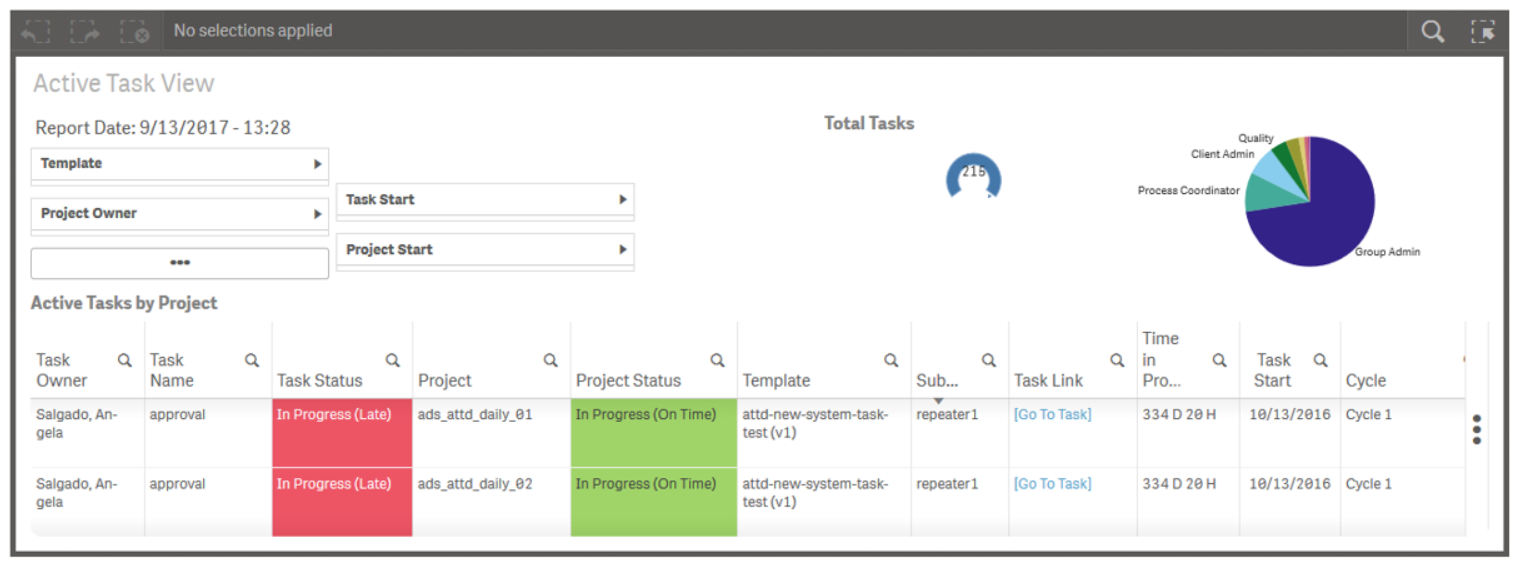
Active Task View
- Total and breakdown of ALL active tasks
- Displays both task and project timeliness
- Users can filter by dates, status, task name, task owner, group, and project name
Completed Projects
- Timeliness of projects completed within the 12 months – broken down by month
- Details include planned and actual durations for each project
- Users can filter by dates, status, project name, and owner

KPI Cycle
- Key Performance Indicators for Completed Projects
- ‘Right First Time’ totals and percentages
- Rejection Reasons
- Users can filter by dates, groups, template name, task name, project name, and owner

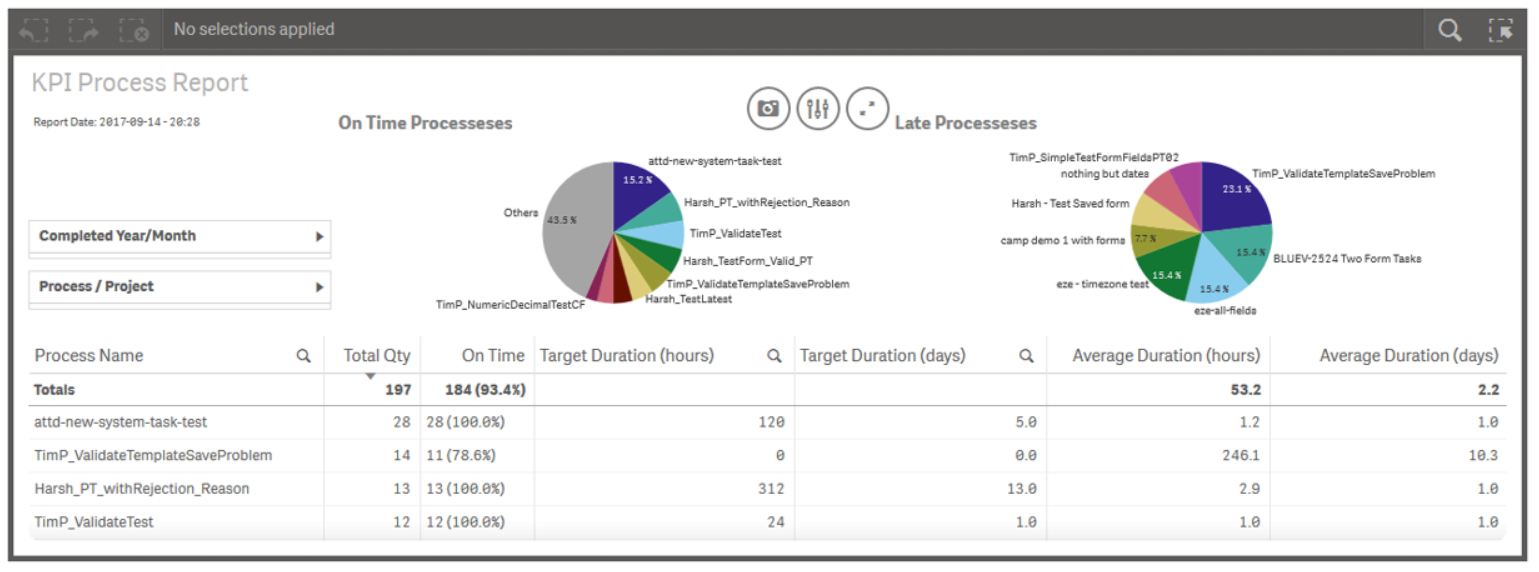
KPI Process
- Key Performance Indicators for Completed Projects
- Timeliness percentages for Projects and Processes
- Details include target and actual durations
- Users can filter by dates, groups, process name, project name, and owner
Project Status
- Timeliness of ALL projects in the system
- Details include planned and actual durations for each project
- Users can filter by dates, status, project name and owner

Rejection Reason
- Rejection Reasons broken down by Project, Group, and User
- Projects with more than one approval cycle
- Users can filter by dates, project name, groups, and users

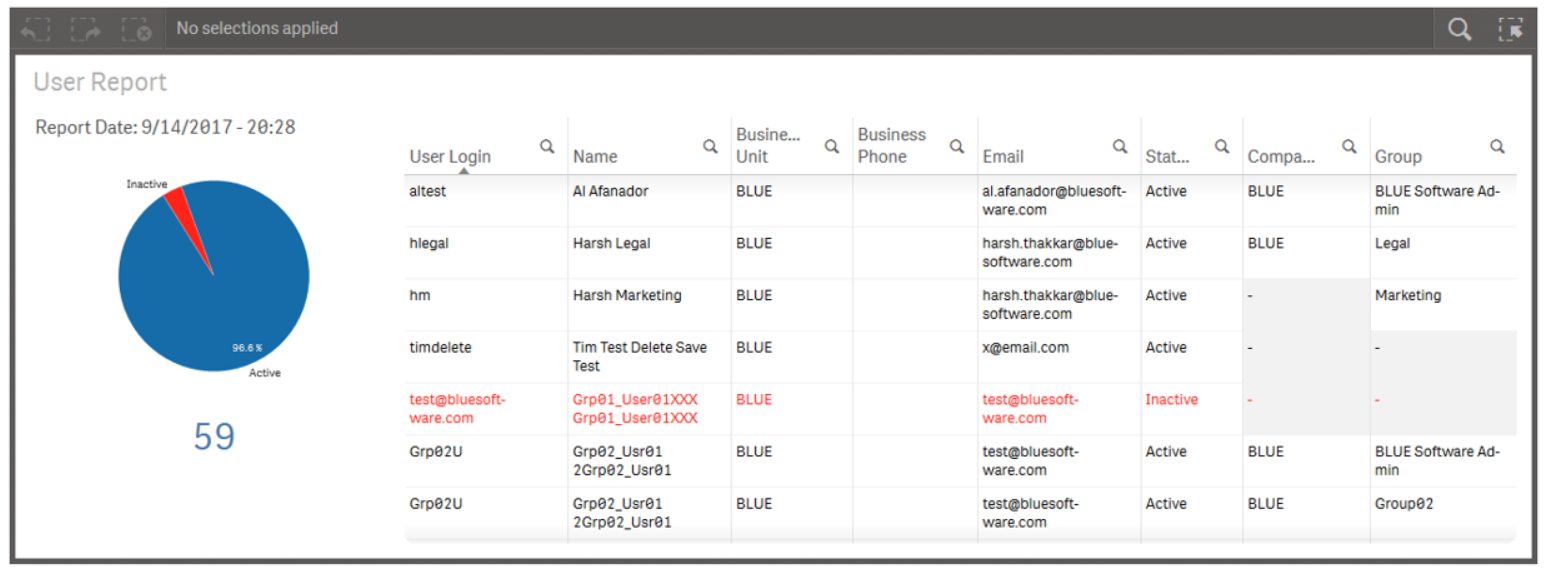
User Report
- Lists all user accounts in the system
- Details include user name, email, Company, Group(s), and Status
How do I start using reports?
End users simply click on the link for the report they wish to view.
Reports are interactive. When a report is displayed you can click on any of the components of the report (e.g. a ‘slice’ on a pie chart) to dynamically filter your view based on your selection(s).
We’ll use the ‘Active Task’ Report as a point of reference to take a closer look at some of the more common and powerful features found in each of the reports.

Report Layout
While each report is slightly different based on the type of information being presented, we can use the Active Task Report above to describe the general layout and common components you will see.
FILTERS (1)
The top left side of the report is generally used to display selectable filters. Using filters allows the user to focus on the data that’s important to them.
Ellipses (…) appear when additional filters are available but do not reasonably fit on the user’s screen. Clicking the ellipses will open a modal window where the user can select additional filters to apply.
CHARTS (2 & 3)
The top center and right typically displays chart(s) to visually represent key information. In the example above, we can see there are 217 tasks, and the pie-chart displays a breakdown of tasks by Group.
DETAIL VIEW (4)
Detailed data is displayed in a table-view – commonly at the bottom of the report.
Ellipses (…) appear at the right of the table if there is more data (columns) than can displayed on-screen. Clicking the ellipses will open the ‘column picker’ pop-up where the user can select which available columns (data) to view on-screen.
Although not visible in the screenshot, when there are more detail lines than can be displayed on the screen, a scroll bar will appear when the user hovers the mouse anywhere in the detail view.
APPLIED FILTERS (5)
The title bar will display summary information filters the user has selected. In the screenshot above, no filters have been selected.
Column Picker
In the Detail View, vertical ellipses  will be displayed to the right of the table if there are additional columns of data that can be selected for view.

Items displayed in light gray (below the separator bar) are items that are not in the current users view. Drag items in the picker up / down to rearrange the order of the data and which items are presented on the screen.
Click anywhere on the screen to close the Column Picker dialogue.
Working with Filters
When the report is first loaded (above) there were 217 tasks. Let’s say we are only interested in viewing tasks associated with two specific workflow templates. Using the Template dropdown filter, the user has the options to:
- Select All
- Clear Selection
- Search for items to filter on – by typing in the text area next to the spyglass
- Confirm Selection
- Cancel Selection

The screenshot above shows a user who selecting two templates to use as report filters. As the user (de)selects items in the pop-up, the rest of the report dynamically updates to display information pertinent only to the selected items.
Notice above that the Total Tasks is now 12, and the pie-chart on the right has also changed because the Admin group is the only group associated with the selected templates. The Detail View was also updated and will now only display details for the 12 tasks associated with the selected templates.
Clicking on a selected item will deselect it, or the user could click  to cancel or click
  to clear the selected items.
To Apply the filter, click  Confirm Selection, or simply click anywhere else on the report.
Applied filters appear in the Title Bar of the report to remind the user which filters are currently in use. There is no limit to the number of filters that can be applied at one time.

Clicking on the filter summary in the Title Bar (above) will reopen the filter dialogue allowing you to update or remove it.
Charts – Filtering
We’ve seen how to work with standard filters, but Qlik makes working with data even easier still.
Almost everything displayed on the screen can be used as a filter by simply clicking on it!
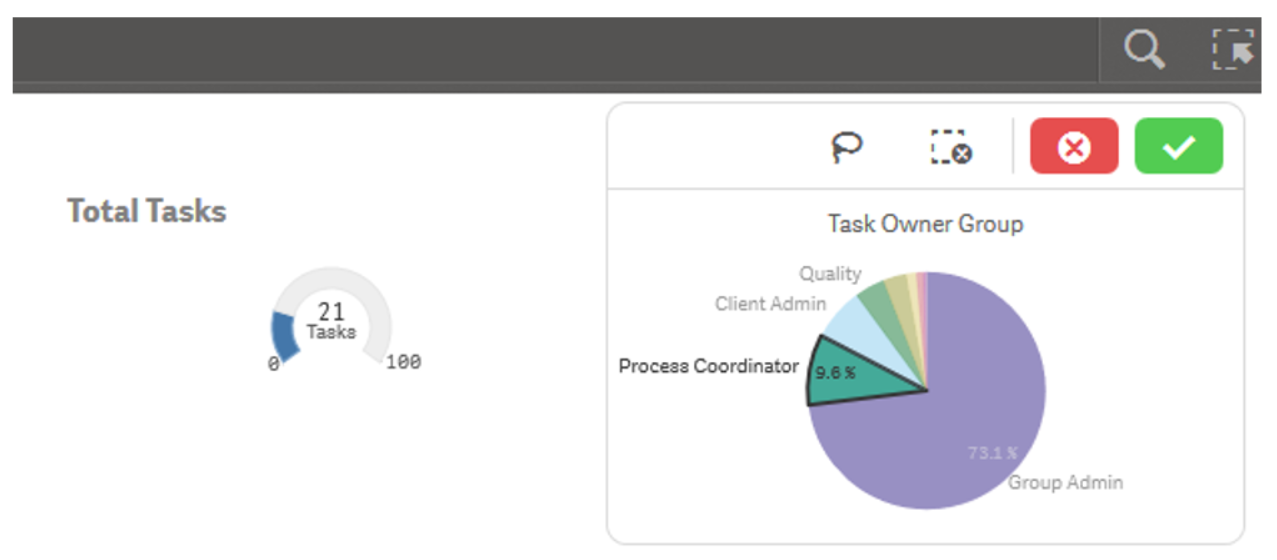
For example, in the partial screenshot below, the user clicked on the piece of the pie-chart that displays tasks assigned to the ‘Process Coordinator’ group. The action of clicking that piece of data opens a Filter Selection dialogue where the user can apply the filter, select more items or cancel the selection.
Charts – Other Actions
Some charts, like the pie-chart above allow the user to customize the view. Options are limited and vary depending on the type of chart.
Right clicking on the pie-chart above provides the user with the option to 
The Exploration Menu lets the user take control of some of the presentation aspects of the chart:
- Sorting
- Presentation (e.g. pie-chart or donut)
- Labels to display on the chart
- Colors and Legends
Detail View
The Detail View is simple tabular data – similar to a spreadsheet.
- Sorting – data can be sorted by clicking on the column headings
- Filtering – clicking on a cell within the Detail View opens the Filter Selection dialogue with a default value matching the value in the selected cell. From within the dialogue the user can select multiple values, search for values, etc. – then choose to either apply or cancel the selection.
- “Go To Task” (or Project) – Some reports provide a link to the user which will bring them directly to a specific task or project. Clicking the link opens the task or project in a new tab within the browser.
Searching
The primary reason to search for data within a report is so you can filter data based on it. With that in mind, here are two common uses of the Search capabilities within Qlik.
Tip: When searching for special characters, use the asterisk (*) wildcard immediately before and after the character(s) you are searching for.
Example: When searching a field containing email addresses:
- Searching for smith will return email addresses that contain ‘smith’ anywhere in the string (expected)
- Searching for *smith* will return email addresses that contain ‘smith’ anywhere in the string (expected)
- Searching for just a dash – will return everything (even values with no dash)
- Searching for *-* will return only email addresses that contain a dash (–)
Standard Search
Clicking on the spyglass  next to a column heading in the Detail View, or within a Filter Selection dialogue allows the user to search for a matching value within the list of items for that specific data item.
As the user enters text, the resulting list of values is filtered.
The user can select items in the list to apply to the report filter.
Smart Search
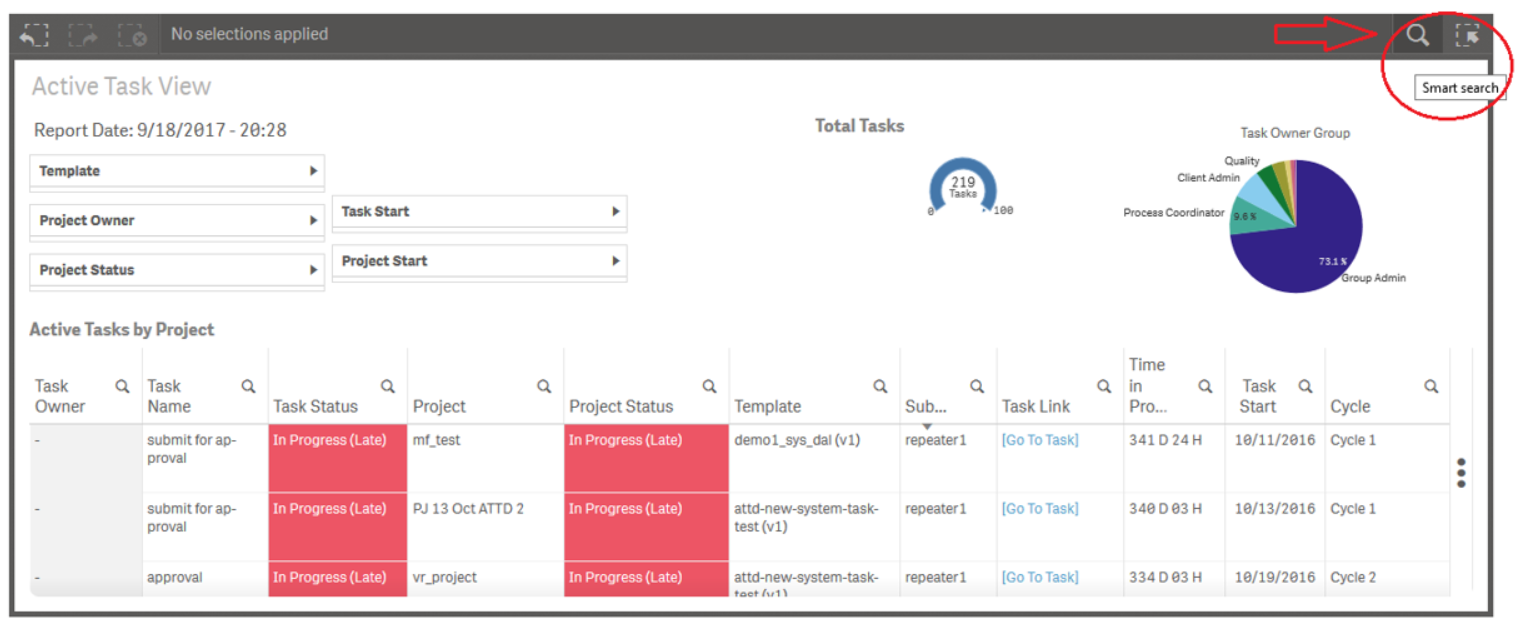
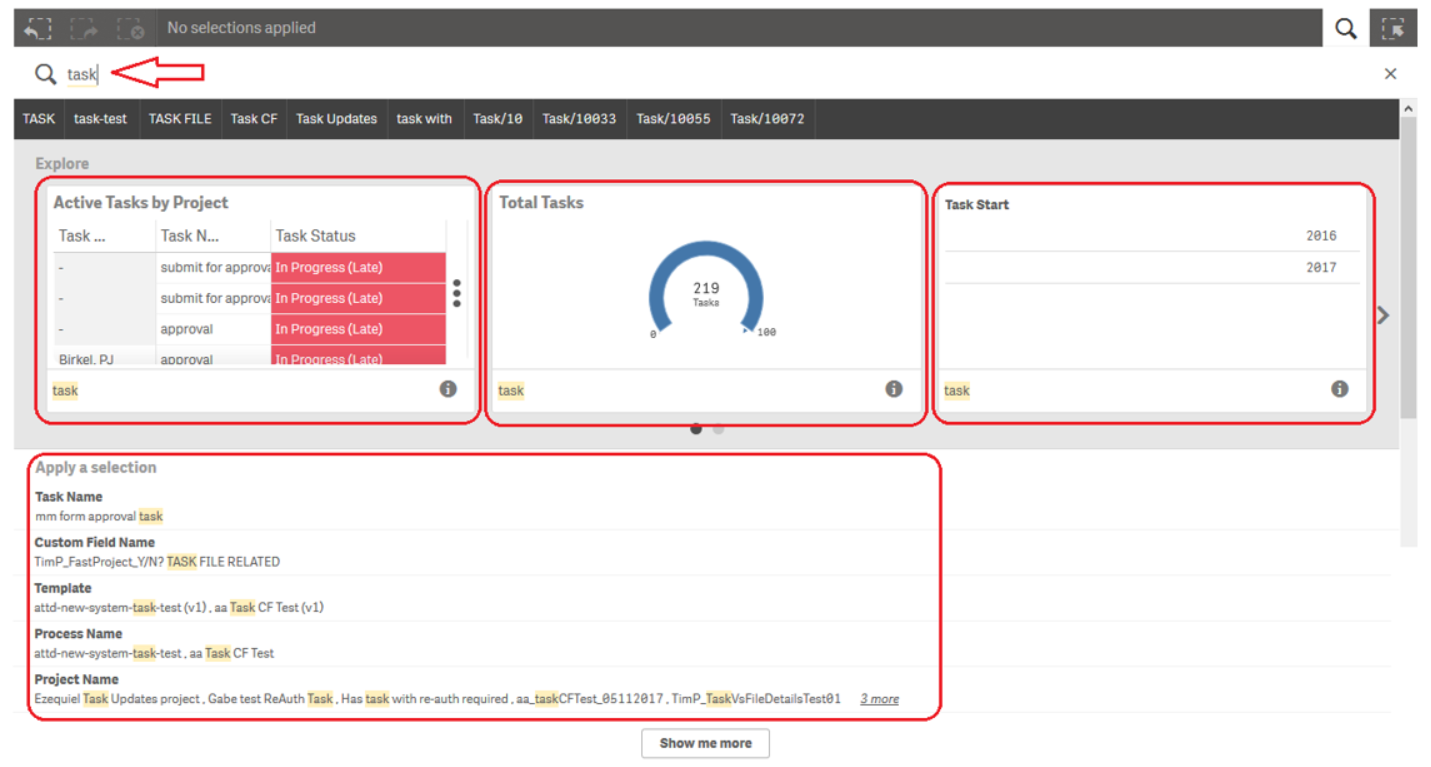
Smart Search allows the user to enter a value to search against, then searches all charts and data items in the entire report for matches. Results are displayed to the user, who can then select which data elements (if any) should be used as filters.
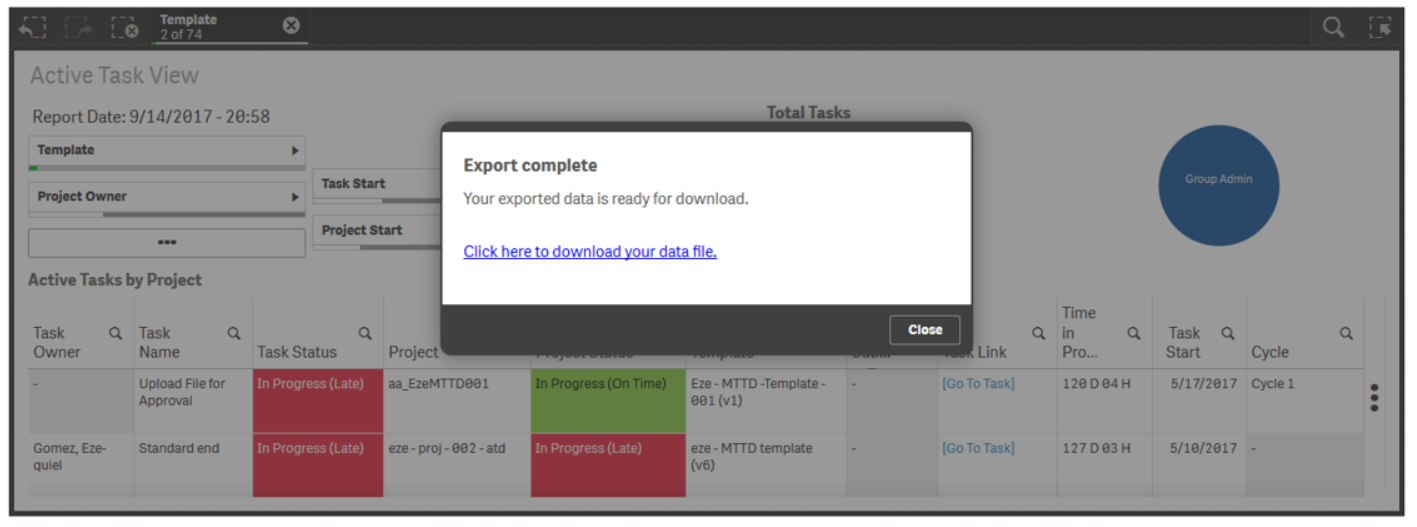
The screenshot below shows an example of a user who is searching for the value ‘task’. Notice there are multiple matches – and how the user can select which data item(s) to filter on.
What can I export and how?
Right-clicking on any report object (e.g. pie-chart, details list, etc.) will display a pop-up menu with the following options:
- Export as an image
- Export to PDF
- Export data
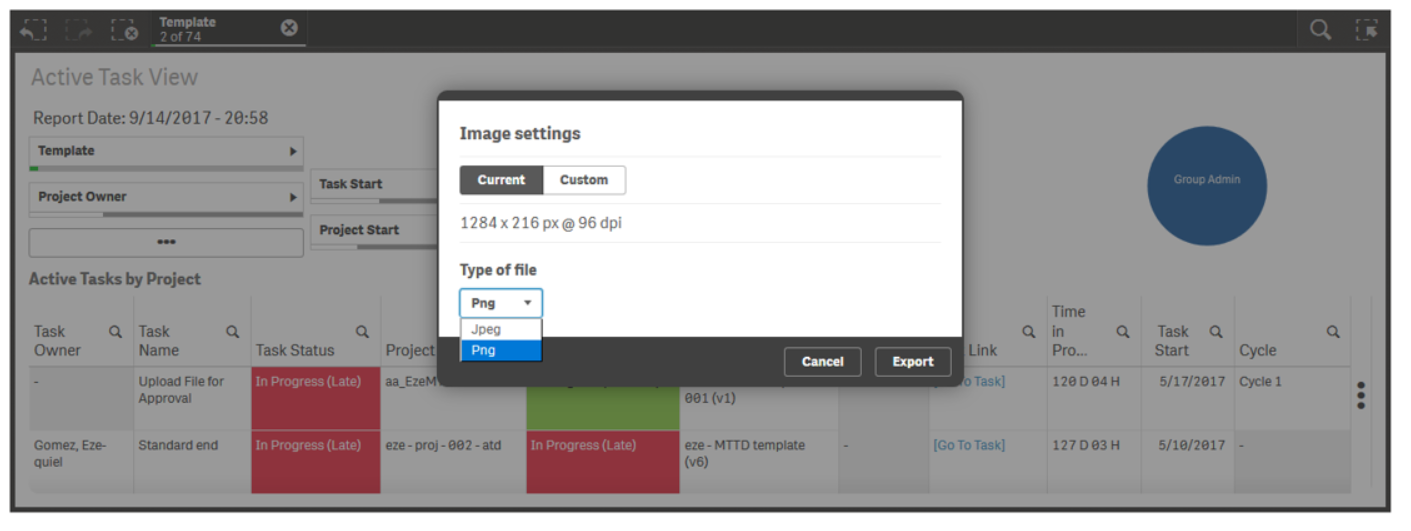
Export as an image
This option allows the user to generate an image of the chart as it is currently displayed on the screen. Export respects all filters that are currently applied to the report.
The user can choose the target dimensions and File Type (.png / .jpeg)
Note: The image generated is exactly as seen on screen. If you are creating an image from a Detail View, only the visible rows will appear on the image.
Export to PDF
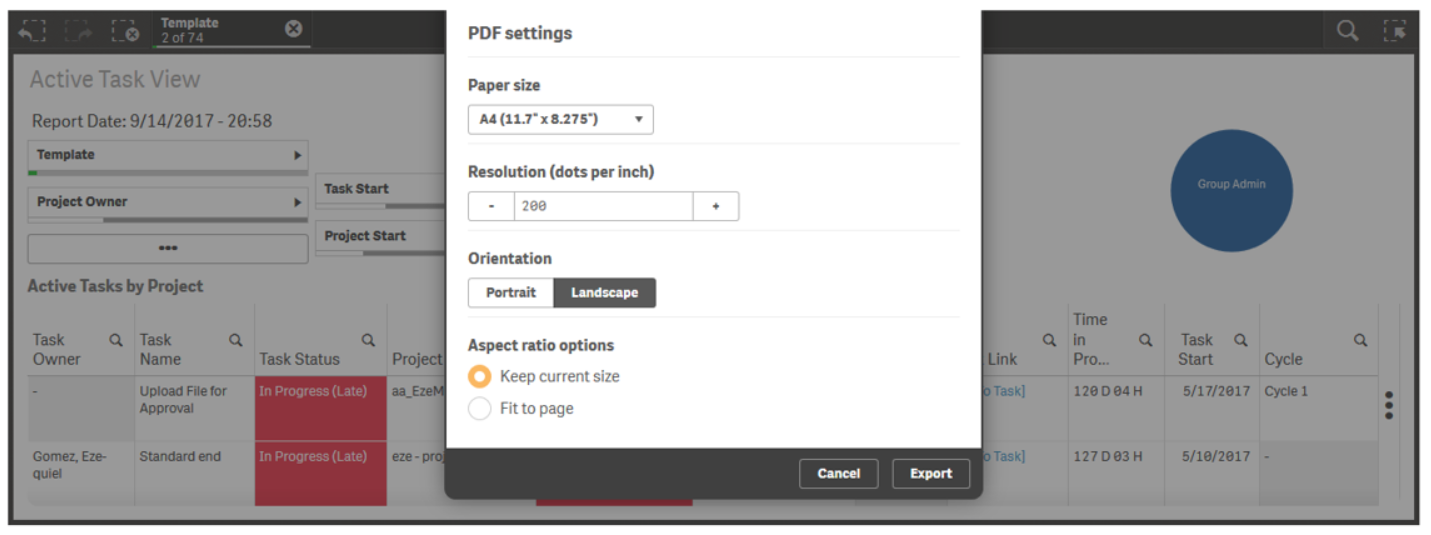
This option allows the user to generate a PDF of the chart as it is currently displayed on the screen. Export respects all filters that are currently applied to the report.
The user can select the following:
- Paper Size
- Resolution (dpi)
- Orientation
- Aspect Ratio
Note: The PDF generated is exactly as seen on screen. If you are creating a PDF from a Detail View, only the visible rows will appear on the PDF.
Export data
This option exports the data represented in the chart (or Detail View) to a CSV which can be opened in Excel or similar applications.
The exported data respects the filters applied, but is NOT limited to what appears on the screen. ALL data in the result-set is exported, INCLUDING columns which are not visible on-screen.
Your browser’s functionality will prompt you to either view or save the file locally.